Integrate Acronis Cyber Protect Cloud with StorX
Acronis Cyber Protect Cloud is designed to deliver cyber protection efficiently and securely. Use Acronis Cyber Protect Cloud with StorX to combine data backup with AI-based antivirus, anti-malware, and endpoint protection. Learn more about Acronis Cyber Protect Cloud →
Prerequisites
Before uploading files using Acronis Cyber Protect Cloud, you require:
- An active StorX account. Sign up here if you do not have one.
- A Vault in StorX.
- Valid EndPoint, Access Key ID and Secret Access Key.
- A valid Acronis Cyber Protect Cloud account.
Configure Acronis Cyber Protect Cloud with StorX
- Sign in to Acronis Cyber Protect Cloud console.
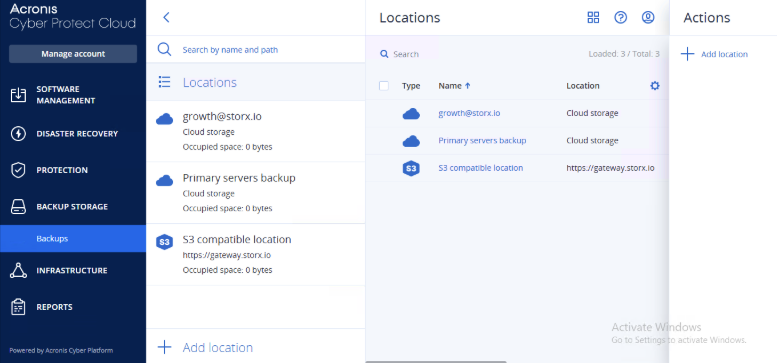
- Navigate to BACKUP STORAGE > Backups.
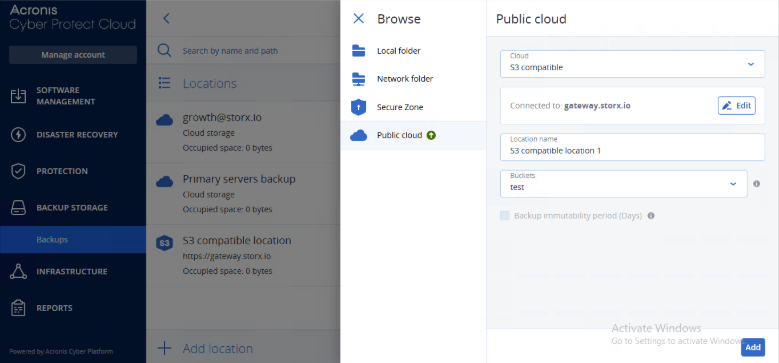
- Click Add location in Actions.
4. Go to Public cloud and select S3 compatible as Cloud from dropdown.
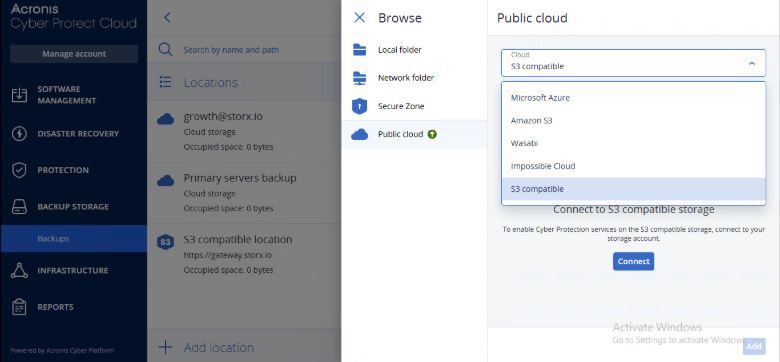
5. Click Connect.
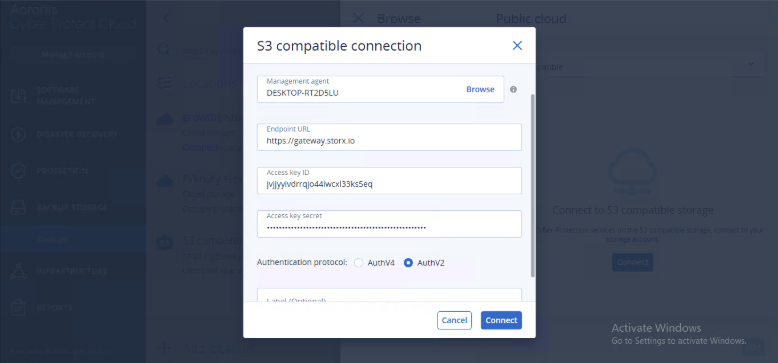
6. In S3 compatible connection window, enter your StorX storage credentials:
- Enter the StorX storage end-point as Endpoint URL.
- Enter the StorX Access Key as the Access Key ID.
- Enter the StorX Secret Access Key as the Access key secret.
- Select AuthV2 as the Authentication protocol.
- Click Connect.
7. Under Add devices, select the desired device (e.g., Windows Workstation). The download will start automatically.
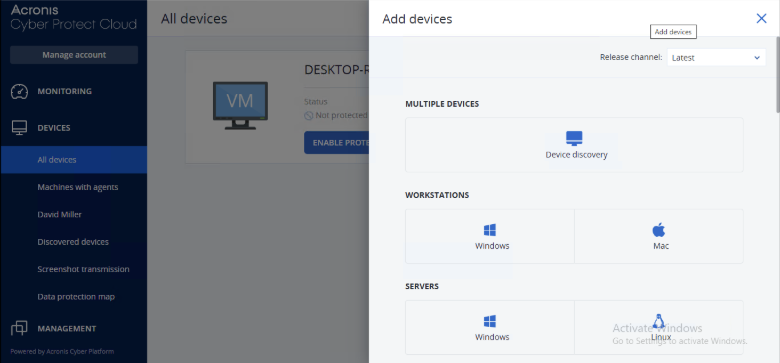
Note: Install the downloaded file. After installation, the device will appear under All devices.
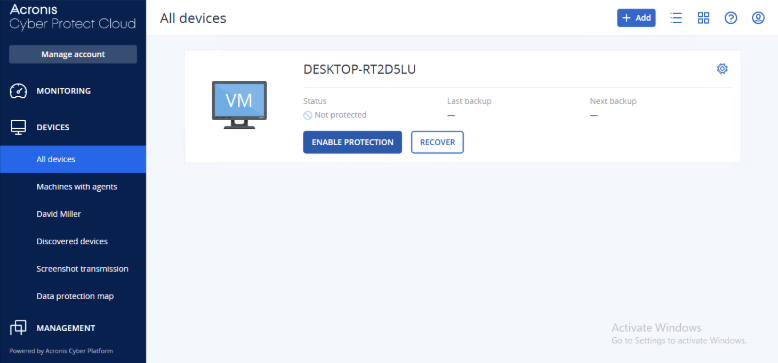
8. Under All devices, click ENABLE PROTECTION for the newly added device.
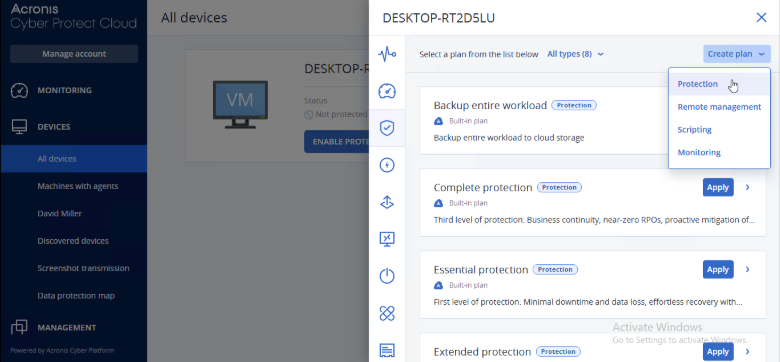
9. In the slider window, click Create plan from dropdown and select Protection.
a. Enter a name for the Protection Plan.
b. Select items for backup (local drive/folder/files) by clicking on
Items to backup.
c. Click Where to back up.
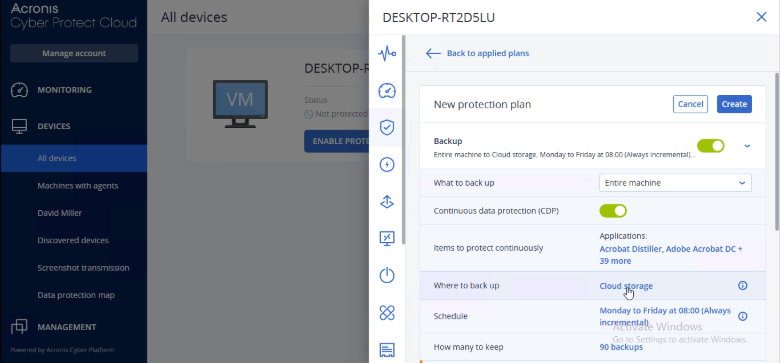
d. Select the added Cloud storage or repeat steps from 3 to 6 to add a new location.
10. Click Add and Confirm.