



What is Docker?
Docker is an open-source platform that helps developers build, ship, and run applications. It's used to automate application deployment and to ensure that applications run consistently across different environments.
Can we backup Docker to StorX?
Yes, it is possible to back up Docker data to StorX, which is a decentralized cloud storage platform. StorX is built on blockchain technology and provides secure, cost-effective, and decentralized storage solutions.
Backup Strategies for Docker Data
- Volume Backups: Docker volumes are used to persist data outside of the container's file system. You can back up Docker volumes by copying the data to a StorX storage bucket or using a backup tool that integrates with StorX.
- Container Image Backups: Docker images can also be backed up to StorX by exporting the image and saving it to the storage. This ensures that you have a copy of the application image that can be restored later.
- Automated Backup Scripts: You can use automated scripts that regularly back up your Docker data (volumes, images, logs, etc.) to StorX for safekeeping.
Benefits of Using StorX for Docker Data Backup
StorX uses encryption to ensure your backup data is protected from unauthorized access.
The decentralized nature of StorX ensures that your backups are resilient to data loss or service interruptions.
StorX's competitive pricing can make backing up Docker data much more affordable than traditional cloud storage providers.
With StorX, you have more control over your data since it is decentralized and not controlled by a single entity.
Prerequisites
- Active StorX account
- Docker installed on your system
- StorX access credentials (Access Key, Secret Key, Endpoint)
- Rclone installed and configured (Rclone setup guide)
Step 1: Install Docker on Ubuntu
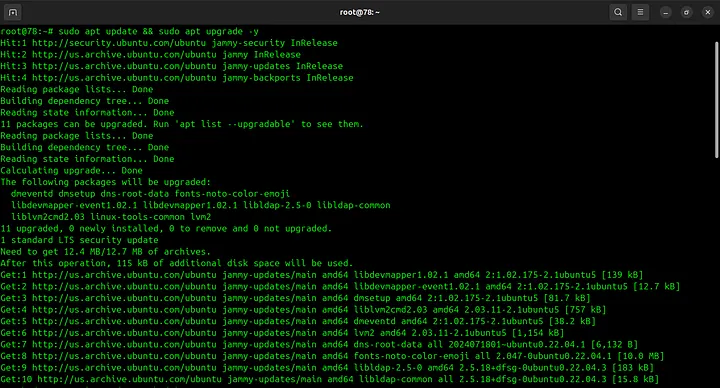
1. Update your system:
sudo apt update && sudo apt upgrade -y
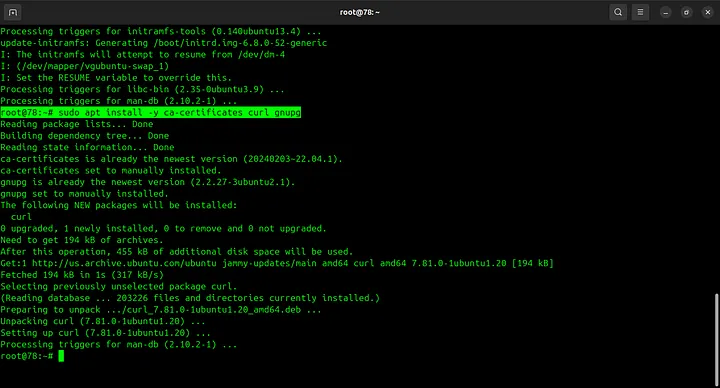
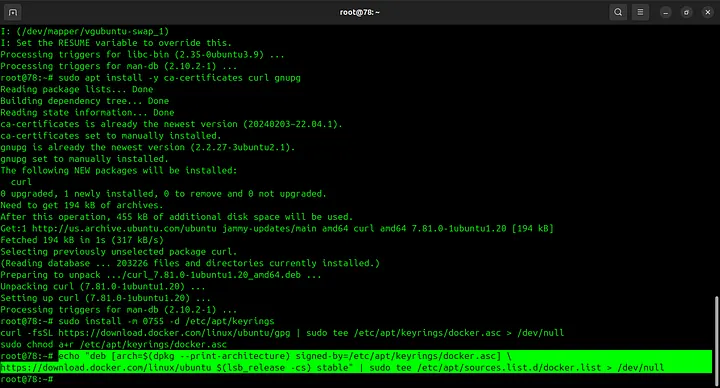
2. Install necessary dependencies:
sudo apt install -y ca-certificates curl gnupg
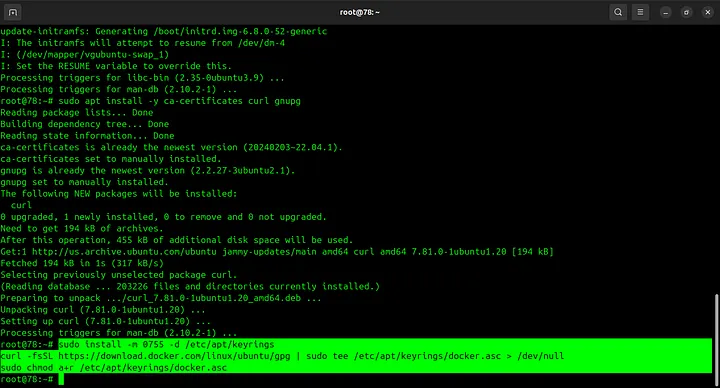
3. Add Docker's official GPG key:
sudo install -m 0755 -d /etc/apt/keyrings
curl -fsSL https://download.docker.com/linux/ubuntu/gpg | sudo tee /etc/apt/keyrings/docker.asc > /dev/null
sudo chmod a+r /etc/apt/keyrings/docker.asc
4. Set up the Docker repository:
echo "deb [arch=$(dpkg --print-architecture) signed-by=/etc/apt/keyrings/docker.asc] https://download.docker.com/linux/ubuntu $(lsb_release -cs) stable" | sudo tee /etc/apt/sources.list.d/docker.list > /dev/null
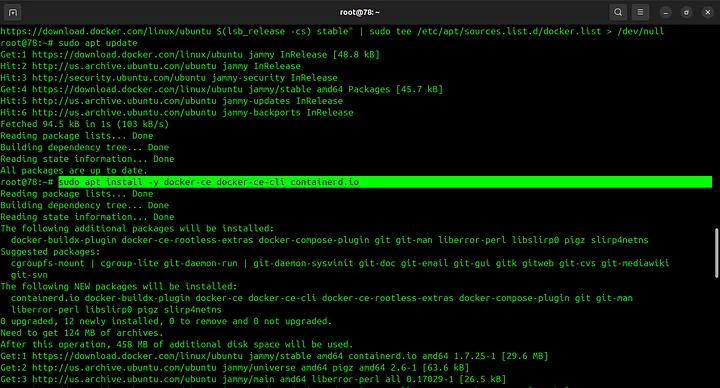
5. Update and install Docker:
sudo apt update
sudo apt install -y docker-ce docker-ce-cli containerd.io
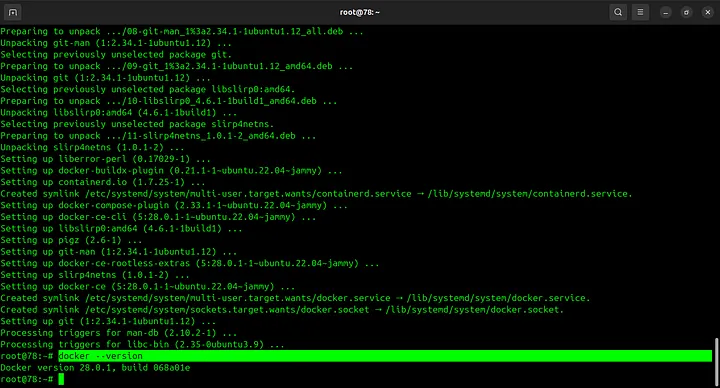
6. Verify Docker installation:
docker --version
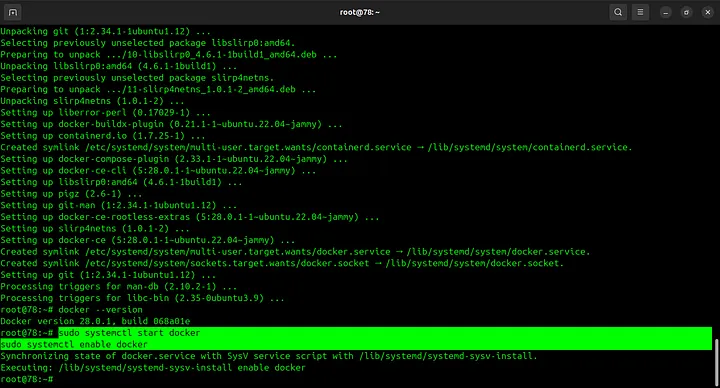
7. Start and enable Docker service:
sudo systemctl start docker
sudo systemctl enable docker
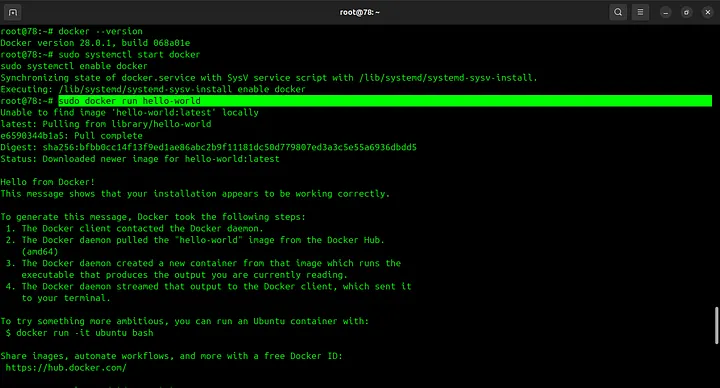
8. Test Docker with hello-world container:
sudo docker run hello-world
Step 2: Backup Docker Data to StorX using Rclone
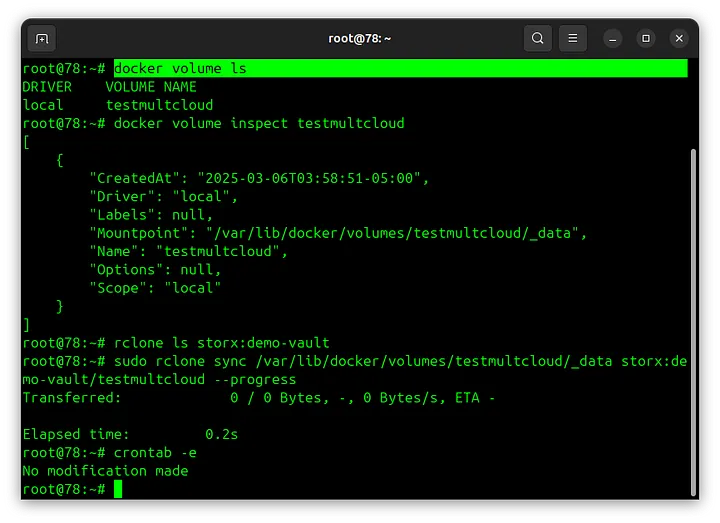
1. List Docker volumes:
docker volume ls
2. Inspect a specific volume to find its location:
docker volume inspect your_volume_name
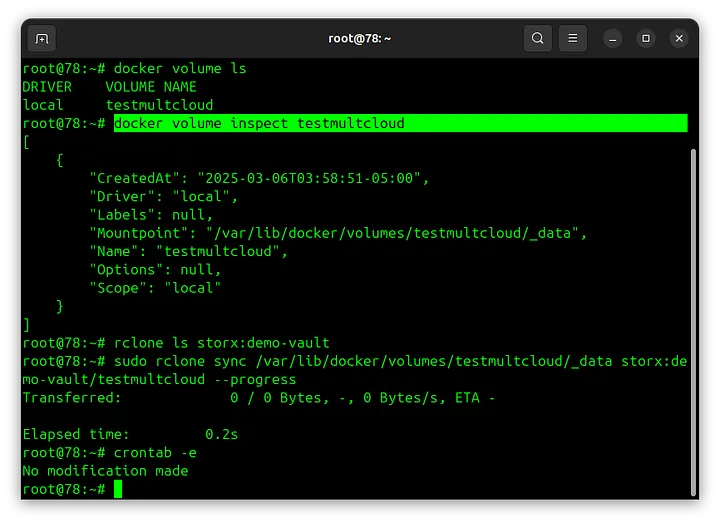
Note: The volume location will be displayed in the "Mountpoint" field. Use this path in the next step.
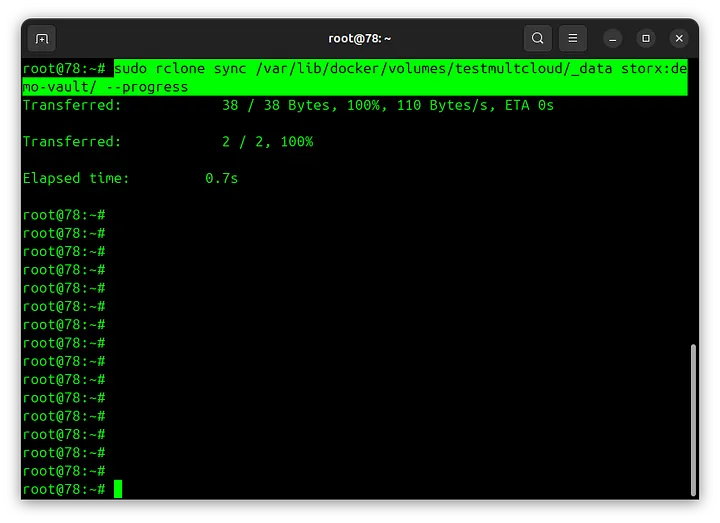
3. Sync the volume data to StorX using rclone:
sudo rclone sync /var/lib/docker/volumes/your_volume_name/_data your_storx_remote:your-vault-name/ --progress
4. Verify the backup in your StorX vault:
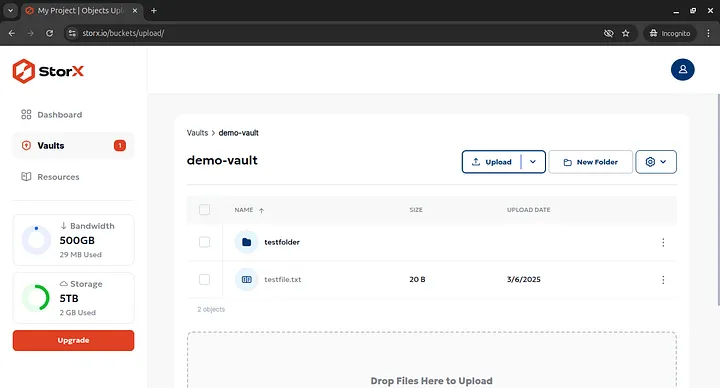
✓ Backup Complete! Your Docker data has been successfully backed up to StorX. Your container data is now securely stored in decentralized storage.
Step 3: Automate Docker Backups
Create a backup script and schedule it with cron:
#!/bin/bash
# Docker to StorX Backup Script
DATE=$(date +%Y%m%d)
BACKUP_DIR="/tmp/docker-backup-$DATE"
STORX_REMOTE="your_storx_remote"
VAULT_NAME="your-vault-name"

# Create backup directory
mkdir -p $BACKUP_DIR

# Backup Docker volumes
for volume in $(docker volume ls -q); do
    echo "Backing up volume: $volume"
    sudo docker run --rm -v $volume:/volume -v $BACKUP_DIR:/backup alpine tar czf /backup/$volume.tar.gz -C /volume ./
done

# Backup Docker images
docker save $(docker images -q) -o $BACKUP_DIR/all-images.tar

# Upload to StorX
rclone sync $BACKUP_DIR $STORX_REMOTE:$VAULT_NAME/docker-backup/$DATE/ --progress

# Cleanup
rm -rf $BACKUP_DIR
echo "Backup completed on $(date)" >> /var/log/docker-storx-backup.log
Make the script executable and add to crontab:
chmod +x /usr/local/bin/docker-storx-backup.sh
crontab -e
0 2 * * * /usr/local/bin/docker-storx-backup.sh
Using Docker in combination with StorX for data backups is a powerful solution for those looking for secure, cost-effective, and scalable storage for their containerized applications. The decentralized nature of StorX enhances the reliability and security of your backups while ensuring that data is easily accessible and recoverable.