



What is S3 Browser?
S3 Browser is a freeware Windows client for Amazon S3 and Amazon CloudFront. Amazon S3 provides a simple web services interface for storing and retrieving any amount of data anytime from anywhere on the web. Amazon CloudFront is a content delivery network (CDN) that delivers files using a global network of edge locations.
Installation Steps
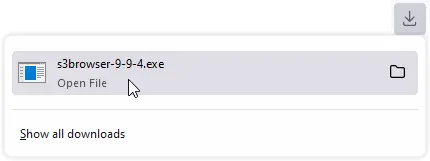
1. Locate and run the downloaded installation file:
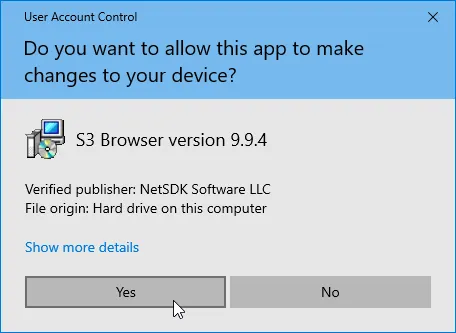
2. Click Yes on the User Account Control prompt:
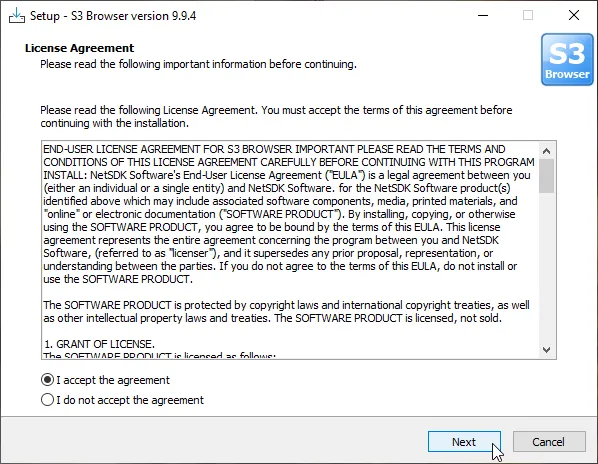
3. Read and accept the license agreement and click Next:
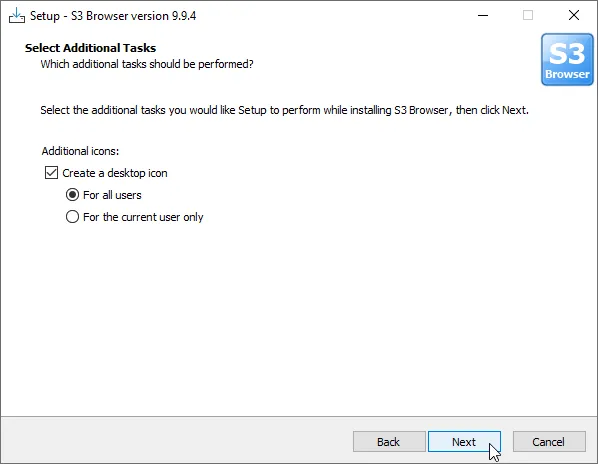
4. Select additional tasks you would like to perform:
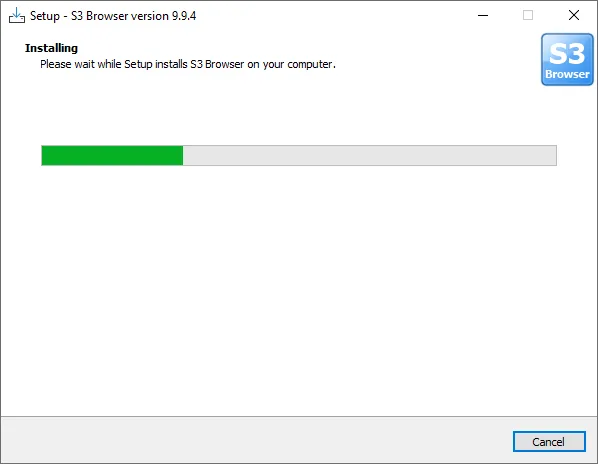
5. Wait while Setup installs S3 Browser:
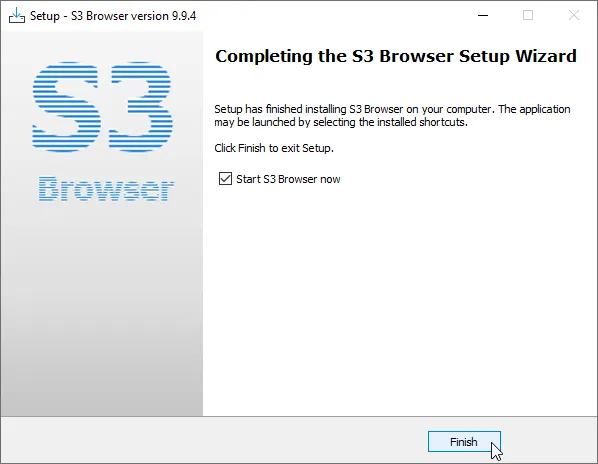
6. Click Finish to complete installation and run S3 Browser:
Before you begin: You need an active StorX account. Join StorX →
Configure S3 Browser with StorX
1. When you start S3 Browser for the first time, you'll be asked to add a new account:
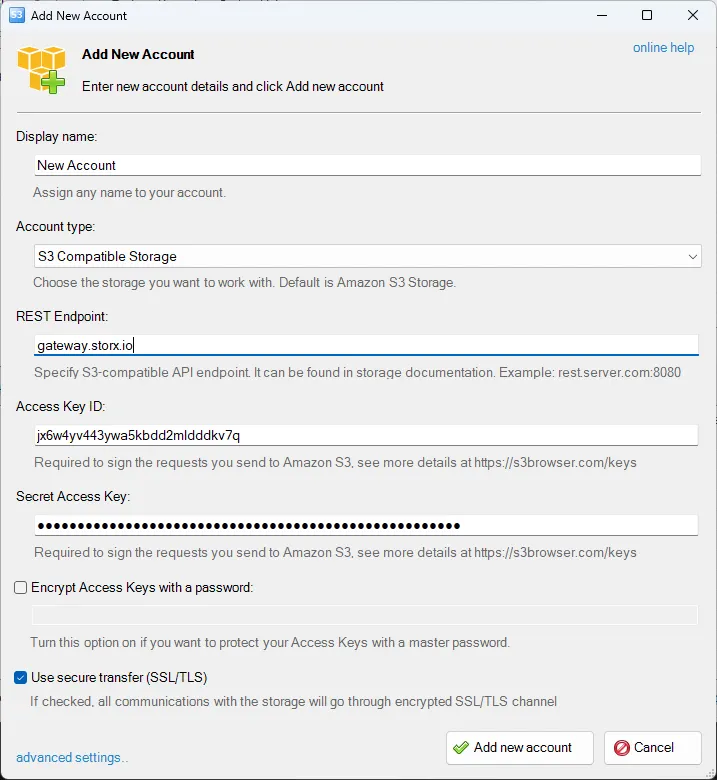
2. Fill out the following fields:
- Account Name: Choose any name (e.g., "StorX")
- Account Type: Select S3-Compatible Storage
- REST Endpoint:
gateway.storx.io - Access Key ID: Your StorX Access Key
- Secret Access Key: Your StorX Secret Key
S3 Browser supports multiple account types:
- Amazon S3 Storage
- S3-Compatible Storage ← Select this for StorX
- Amazon S3 in China
- Amazon S3 GovCloud Storage
- Amazon S3 GovCloud Storage (FIPS-140–2)
- Amazon S3 via EC2 IAM Role
- Amazon S3 via AssumeRole
- Amazon S3 (Credentials from Environment Variables)
- Amazon S3 (Credentials from AWS Config or Credential file)
Note: Access Keys are used to sign requests to S3-Compatible Storage (StorX). Make sure you have your Access Key and Secret Key ready.
3. Click Add new account to save the configuration.
All files on S3 are stored in top-level containers called 'buckets' (vaults in StorX). You can create a new bucket or use an existing one:
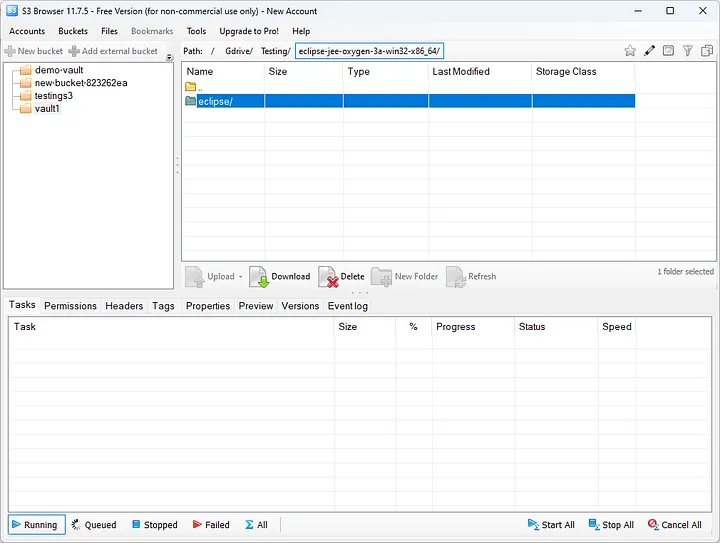
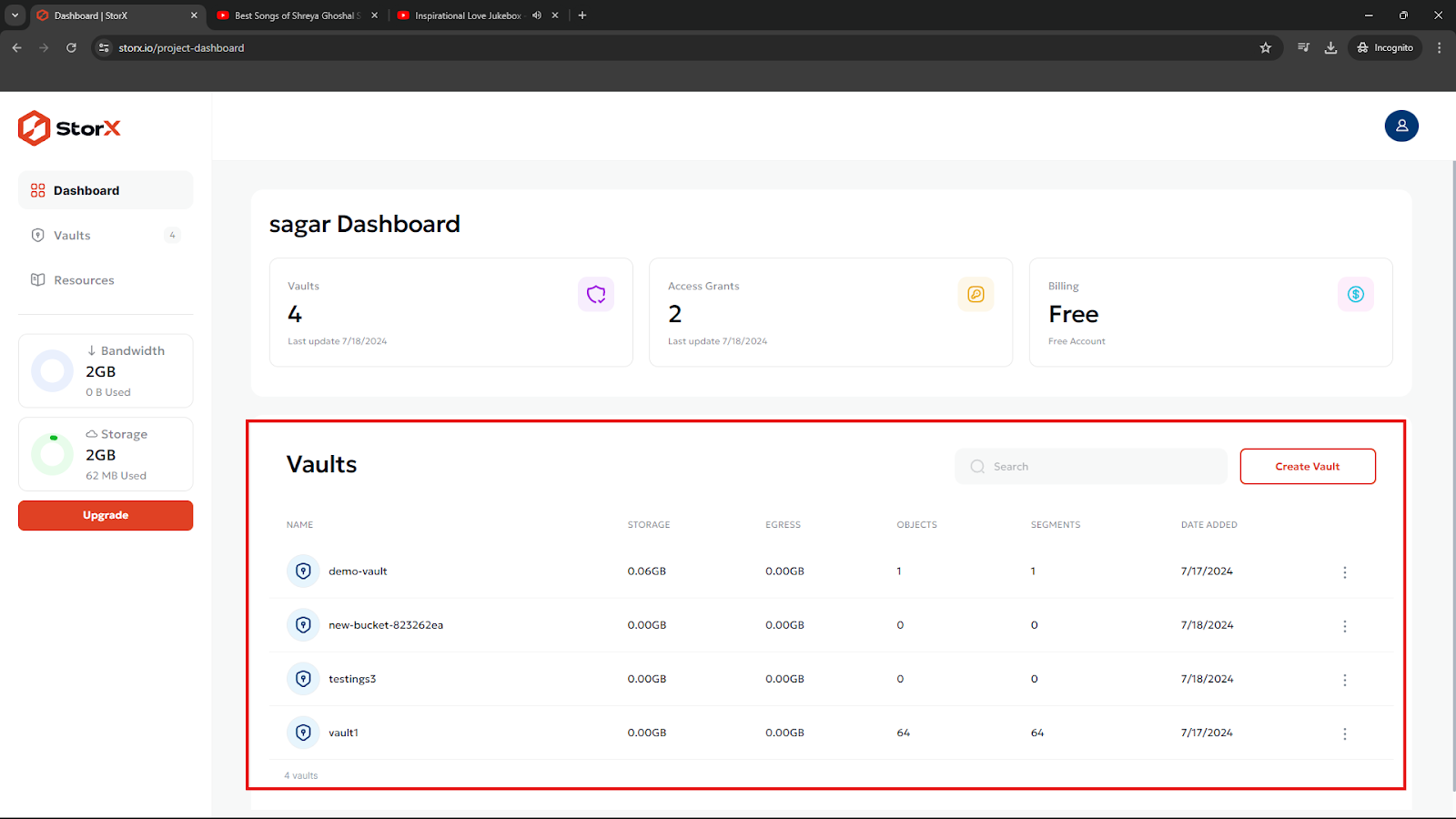
✓ Integration Complete! You have successfully configured S3 Browser with StorX. You can now upload, download, and manage your files in decentralized storage using the familiar Windows Explorer-like interface.
What You Can Do Now
- Upload Files: Easily upload files and folders to your StorX vault
- Download Files: Download files from StorX to your local computer
- Manage Buckets: Create, delete, and manage your StorX vaults
- Set Permissions: Configure access permissions for your files
- Generate URLs: Create shareable links for your files
💡 Pro Tip: S3 Browser supports advanced features like bucket policies, CORS configuration, and versioning. Explore the tools menu to access these features for your StorX storage.