



What is Kopia?
Kopia is a fast, open-source backup tool that creates encrypted, compressed, and deduplicated snapshots of your data. It can store snapshots locally or on various cloud storage providers, including S3-compatible storage like StorX.
Installation on Linux (Ubuntu/Debian/Kali)
1. Add the Kopia GPG signing key:
curl -s https://kopia.io/signing-key | sudo gpg --dearmor -o /etc/apt/keyrings/kopia-keyring.gpg
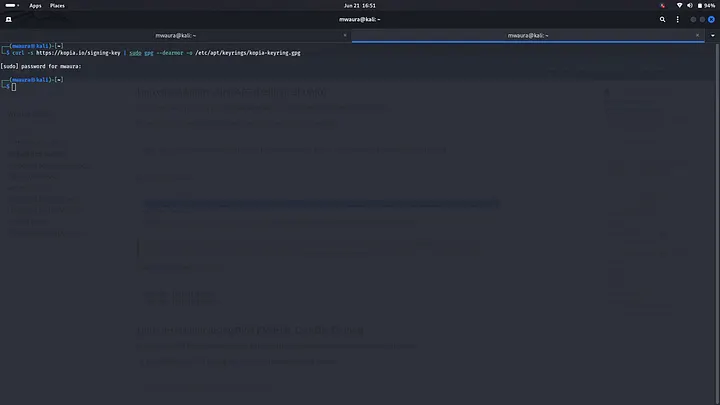
2. Register the APT source:
echo "deb [signed-by=/etc/apt/keyrings/kopia-keyring.gpg] http://packages.kopia.io/apt/ stable main" | sudo tee /etc/apt/sources.list.d/kopia.list
sudo apt update
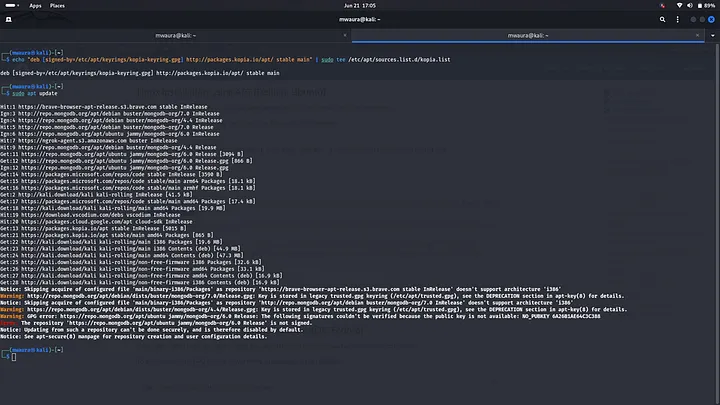
Note: The stable channel provides official stable releases. Testing and unstable channels are also available for users who want the latest features.
3. Install Kopia and KopiaUI:
sudo apt install kopia
sudo apt install kopia-ui
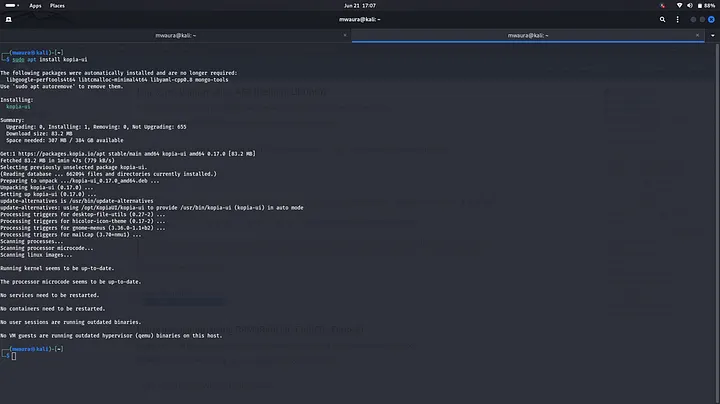
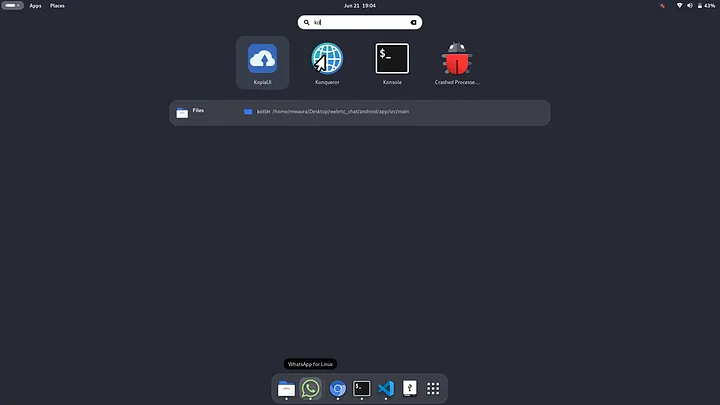
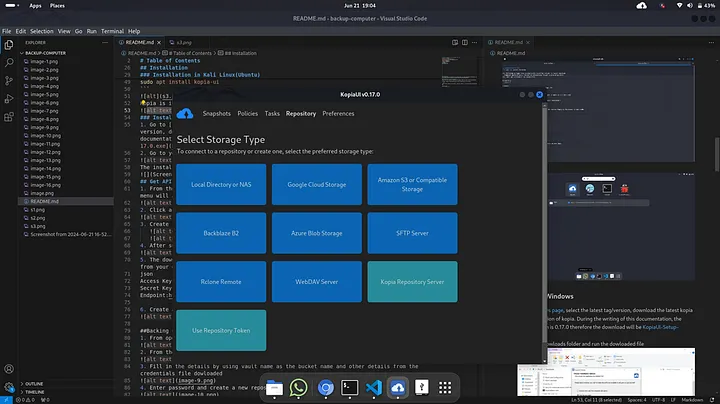
4. Launch Kopia from your desktop:
Installation on Windows
1. Go to the Kopia releases page
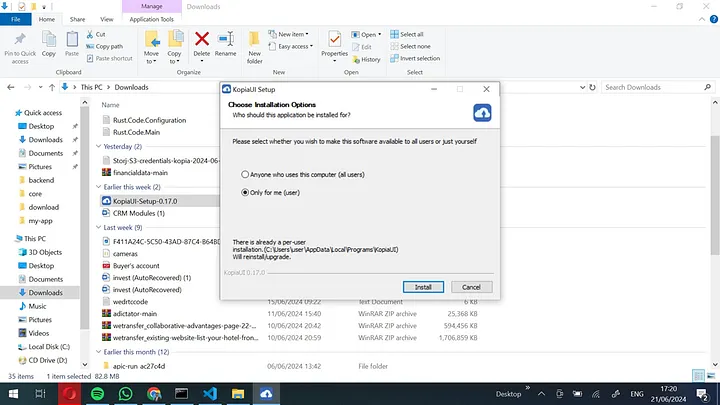
and download the latest installer (e.g., KopiaUI-Setup-0.17.0.exe).
2. Run the downloaded installer and follow the setup wizard.
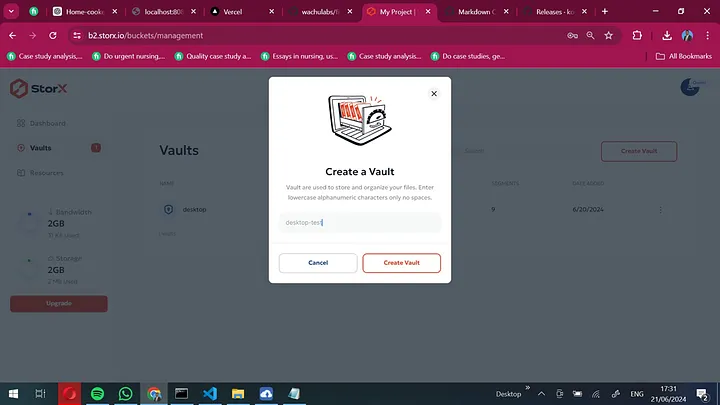
3. Create a vault in StorX that will be used for backups:
Backing up Files with Kopia
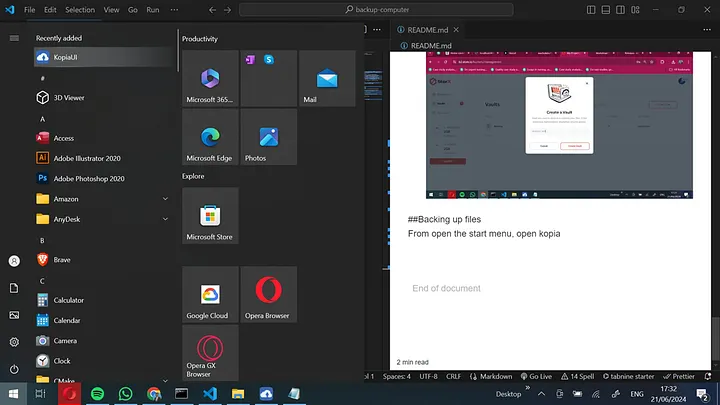
1. Open Kopia from the start menu:
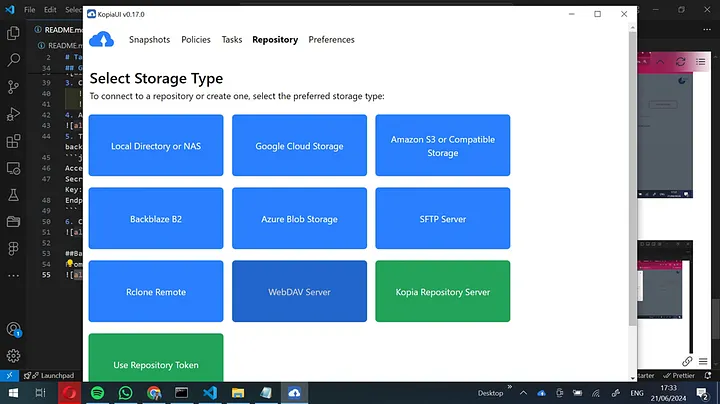
2. Select S3 or compatible storage as the repository type:
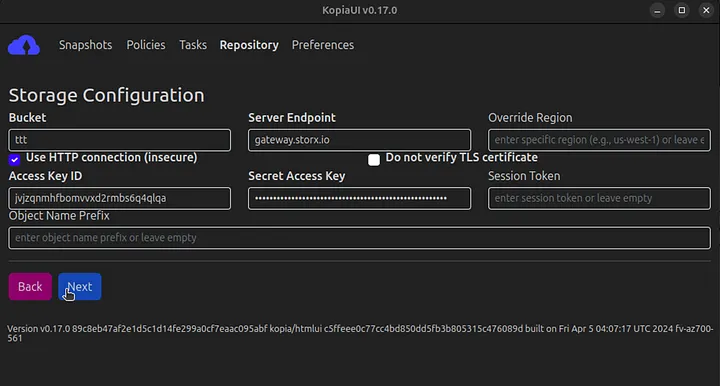
3. Enter your StorX Access Credentials:
- Bucket: Your StorX vault name
- Endpoint:
gateway.storx.io - Access Key: Your StorX Access Key
- Secret Key: Your StorX Secret Key
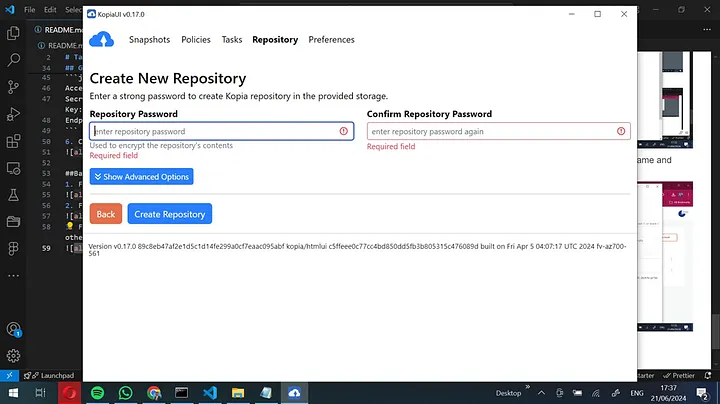
4. Create your new repository:
- Provide and confirm a repository password
- Click Show advanced options to configure encryption, hash algorithm, splitter, and other settings
- Click Create Repository
5. Your repository is now ready:
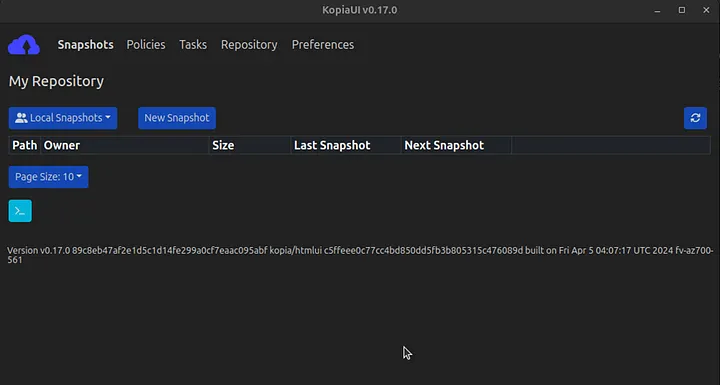
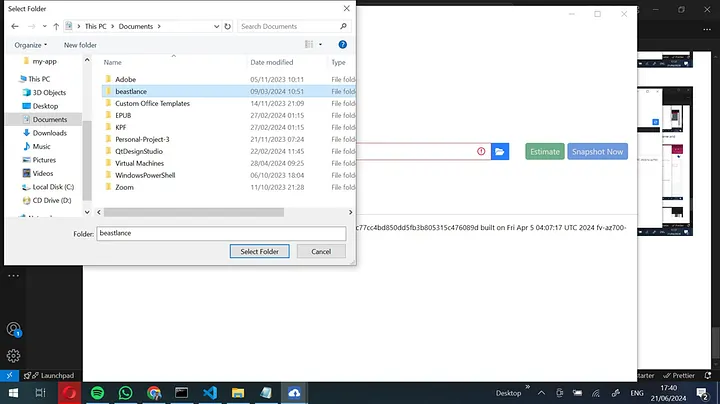
6. Create a new snapshot and select folders to back up. Configure retention and sync settings as needed:
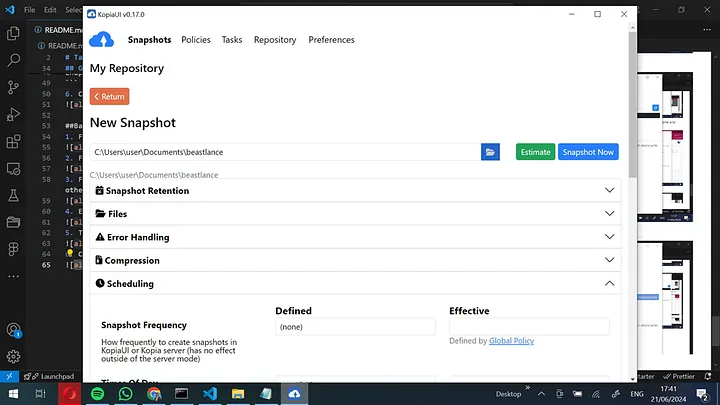
7. Click Snapshot now to start the backup:
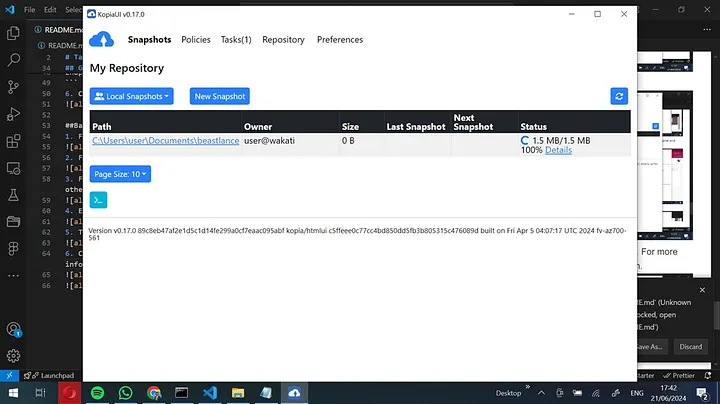
8. Your files will be backed up automatically:
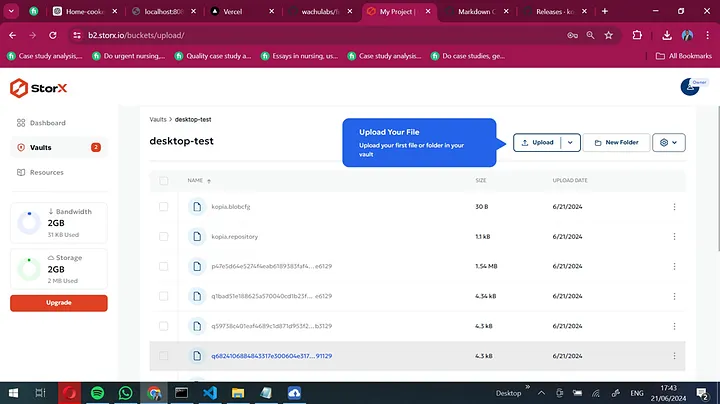
✓ Integration Complete! You have successfully configured Kopia to back up your files to StorX. Your data is now encrypted, compressed, and deduplicated before being stored securely in decentralized storage.
What You Can Do Now
- Scheduled Backups: Set up automatic snapshots on a regular schedule
- File Restore: Browse and restore any version of your backed-up files
- Multiple Policies: Create different backup policies for different folders
- Cross-Platform: Access your backups from any device with Kopia installed
💡 Pro Tip: Kopia's deduplication and compression save significant storage space. Enable these features in the advanced settings for optimal efficiency with StorX.