



What is CubeBackup?
CubeBackup is a powerful backup solution that allows you to back up Gmail, Google Drive, shared drives, contacts, calendar, and website data to local storage or cloud storage destinations, including StorX Cloud Storage.
Download CubeBackup: https://www.cubebackup.com/en/download/google-workspace-backup
Before you begin: You need an active StorX account. Join our community →
Required StorX Credentials
- Access Key - Your unique access identifier
- Secret Key - Your private security key
- Endpoint -
gateway.storx.io - Vault/Bucket Name - The StorX vault where backups will be stored
Setting up CubeBackup with StorX
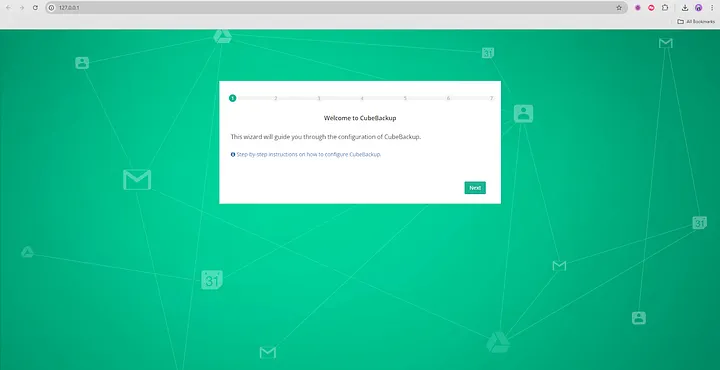
Step 1: Open the CubeBackup Web Console
After installing CubeBackup, its web console will automatically pop up in your default web
browser. You can also open the web console by clicking the CubeBackup icon on the desktop or
visiting http://<server-ip>:<port> on any web browser in your
network.
The default web console address is http://<server_ip>, assuming no other
web services are running before CubeBackup. If port 80 is already in use, the installation
wizard will ask you for a different port.
Step 2: Set Backup Location
CubeBackup allows you to back up Google Workspace data to either on-premises or private cloud storage. Click on the Amazon S3-compatible storage option to get started with StorX.
Enter your StorX Access Credentials:
- Host/Endpoint:
gateway.storx.io - Access Key: Your StorX Access Key
- Secret Key: Your StorX Secret Key
- Bucket/Vault Name: Your StorX vault name
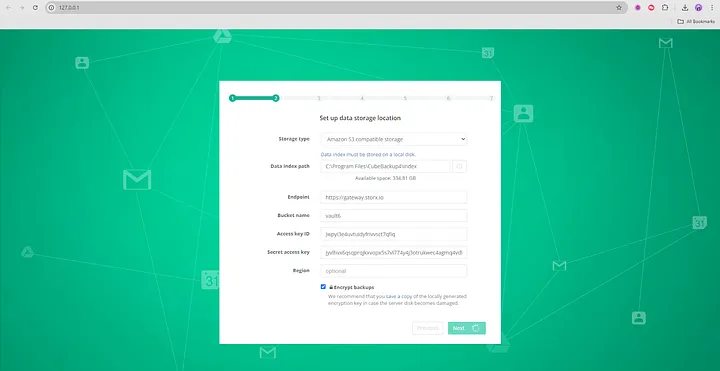
Note: Make sure you have created a vault in StorX before proceeding. The vault name must match exactly what you enter in CubeBackup.
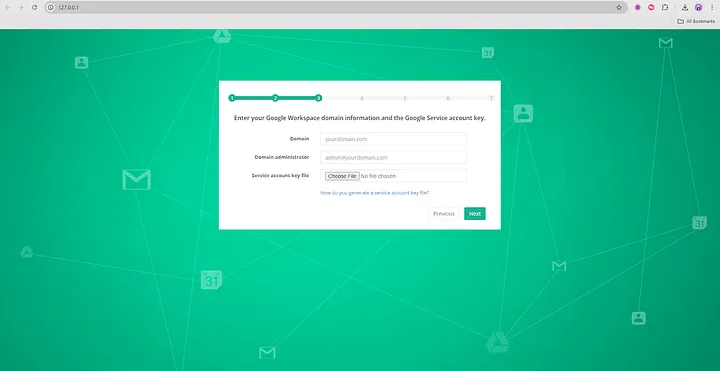
Step 3: Create a Google Service Account
In this step, you must input:
- Google Workspace domain name
- Domain administrator account
- Service account key file
Step 4: Authorize Domain-wide Access
After creating a Google service account, it needs to be authorized to access your Google Workspace data through Google APIs.
Watch Video Guide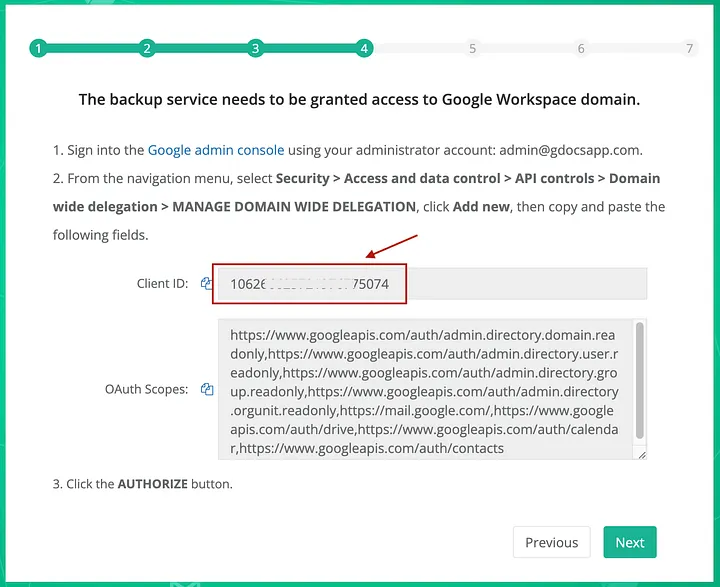
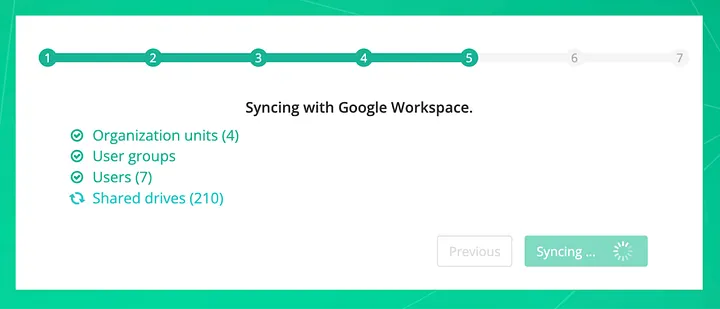
Step 5: Sync with Google Workspace
Wait for CubeBackup to sync the user and shared drive list in your Google Workspace. This may take a few minutes depending on the size of your organization.
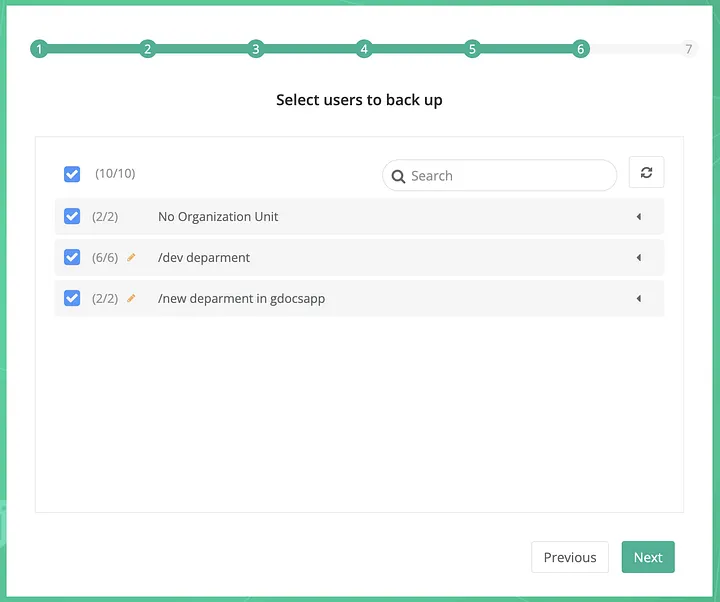
Step 6: Select Users
Now, you can select which Google Workspace users you want to back up.
- By default, all valid users are selected
- You can expand an Organization Unit by clicking the OU to see users in that OU
- You can disable the backup for all users in an OU by deselecting the checkbox beside that OU
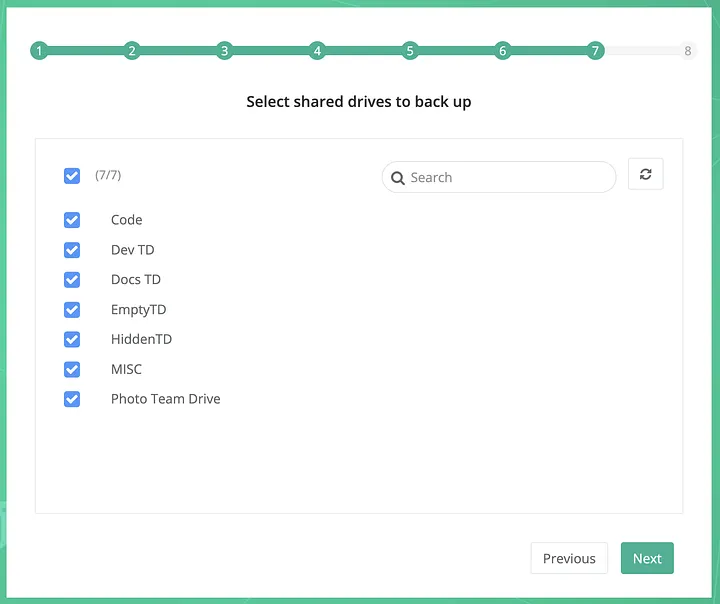
Step 7: Select Shared Drives
This step only applies to Google Workspace Business/Enterprise/Education/Nonprofit organizations with the Shared drives feature enabled. It will be skipped for Google Workspace Legacy or Google Workspace Basic organizations.
You can select which Shared drives you would like to back up.
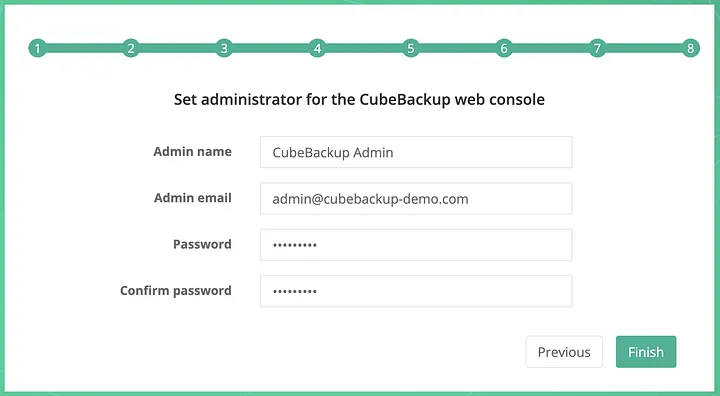
Step 8: Set Administrator Password
Set up the CubeBackup web console administrator account and password.
- This account and password are only for the CubeBackup console and are not related to any Google Workspace services
- The administrator account does not need to be your organization's Google Workspace administrator. You can make anyone the CubeBackup administrator
✓ Setup Complete! CubeBackup is now configured to back up your Google Workspace data to StorX. Your backups will be securely stored in decentralized storage, providing enhanced security and reliability.
Benefits of Using StorX with CubeBackup
- Decentralized Storage: Your backups are distributed across multiple nodes for maximum reliability
- Cost-Effective: Pay only for what you use with no hidden fees
- Enhanced Security: End-to-end encryption ensures your data remains private
- Compliance: Meet GDPR, HIPAA, and other regulatory requirements
- Scalability: Storage grows with your needs without capacity planning
Pro Tip: Schedule regular backups in CubeBackup to ensure your Google Workspace data is always protected. You can configure backup frequency, retention policies, and email notifications.