



What is /n S3 Drive?
/n S3 Drive is a powerful solution for accessing remote resources as if they were local drives, eliminating the need to download and upload files you need to work with. Easily manage remote files stored on any S3-compatible service from your favorite file management utility or the command line.
Advantages of S3 Drive Integration with StorX
- Local Virtual Drive: Easily connect to any Amazon S3 compatible storage service via a local virtual drive. Browse and interact directly with your remote files without creating local copies.
- Flexible Deployment: Run as a Windows service or desktop application based on your needs.
- Full File Operations: Supports all common directory and file operations such as move, copy, and rename in both Windows UI and the command line.
Download /n S3 Drive: https://www.nsoftware.com/download
Before you begin: You need an active StorX account. Join StorX →
Required StorX Credentials
- Access Key - Your unique access identifier
- Secret Key - Your private security key
- Endpoint URL -
gateway.storx.io
Need help getting your credentials? Learn how to get Access Keys →
Step-by-Step Integration Guide
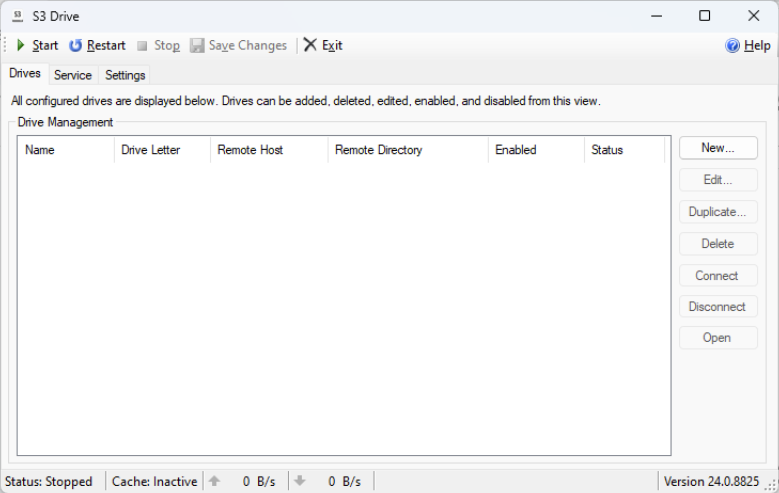
1. Download and install /n S3 Drive. Once installed, open the application:
2. Click the New button. Enter a drive name, and click the More button beside the Provider dropdown to create a custom S3 provider for StorX:
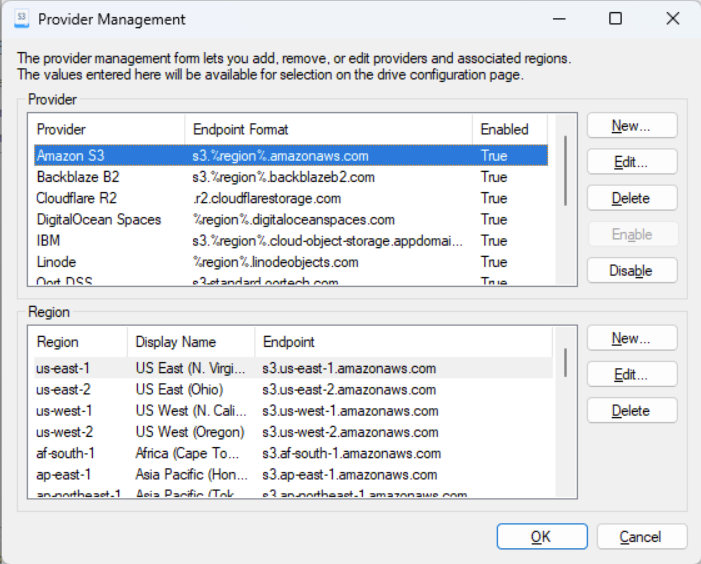
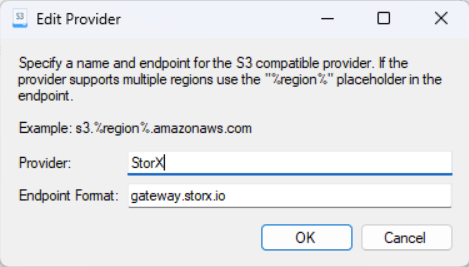
3. Click New again beside the Provider section and add our provider with the StorX endpoint:
- Provider Name: StorX (or any name you prefer)
- Endpoint:
gateway.storx.io
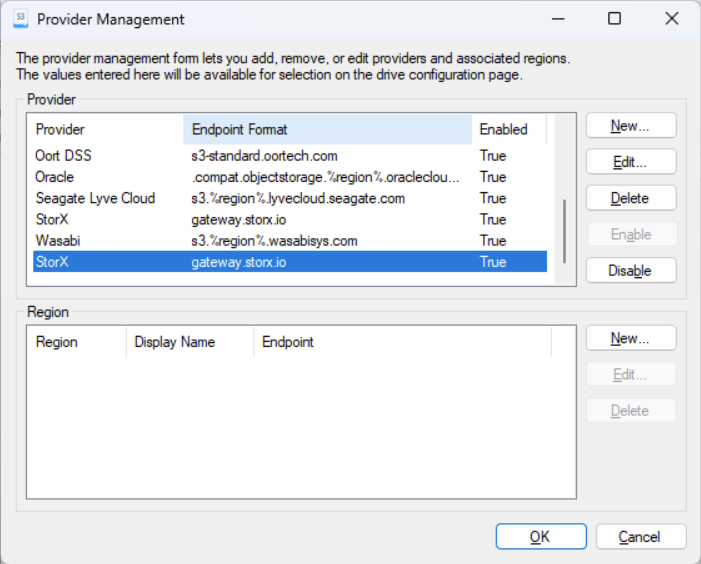
⚠️ Important: Navigate to the Advanced section and uncheck both "Use SSL/TLS" and "Use Virtual Hosting" options. These settings must be disabled for proper compatibility with StorX.
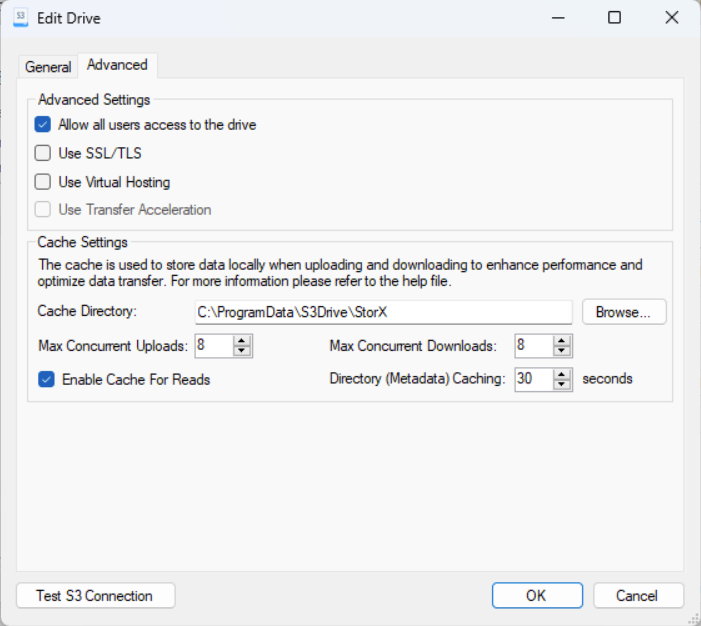
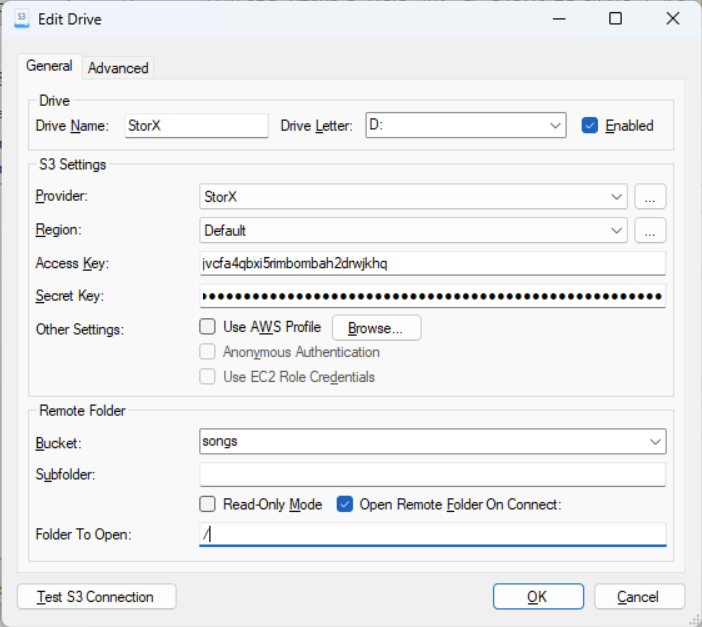
4. Go back to the General tab and enter your StorX credentials:
- Access Key: Your StorX Access Key
- Secret Key: Your StorX Secret Key
- Bucket: Your StorX vault name
Click Test Connection to verify your settings:
5. Once the connection is successful, you can now access your StorX storage as a local drive. Open This PC in File Explorer to see your new drive:
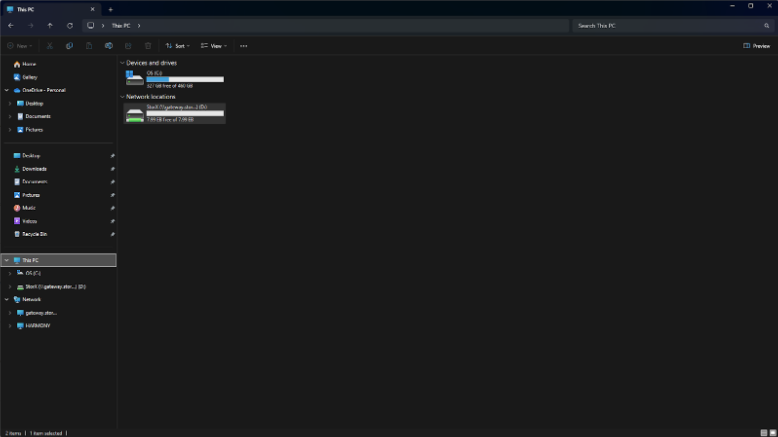
✓ Integration Complete! Your StorX decentralized storage is now mounted as a local drive using /n S3 Drive. You can now upload, download, and manage files directly from Windows File Explorer or command line.
What You Can Do Now
- Direct File Access: Open files directly from StorX without downloading
- Drag and Drop: Easily move files between local folders and StorX
- Command Line Support: Use command-line tools to interact with your StorX drive
- Background Service: Run /n S3 Drive as a Windows service for always-on access
- Multiple Drives: Create multiple drives for different StorX vaults
💡 Pro Tip: /n S3 Drive supports caching to improve performance. You can configure cache settings in the application options to optimize for your specific workflow.