



What is NetDrive?
A network drive is a shared storage device that allows users to access and store files from multiple devices on the same network. NetDrive takes this concept further by connecting cloud storage services as virtual drives on your computer.
Advantages of NetDrive Integration with StorX
- Unified Cloud Access: NetDrive allows you to connect and manage multiple cloud storage services directly from your computer, presenting them as virtual drives. By integrating StorX with NetDrive, users can easily access and manage their decentralized cloud storage alongside traditional cloud services like Google Drive, Dropbox, or OneDrive, all through a single interface.
- End-to-End Encryption: StorX ensures that data is encrypted before being uploaded to the decentralized network. When integrated with NetDrive, this encryption is maintained, ensuring that sensitive data stored in the cloud remains private and secure.
- Seamless Scalability: Scale your storage or switch between different decentralized networks. Integrating StorX with NetDrive allows for a smooth transition without needing to adjust your file management habits.
- Long-Term Data Preservation: StorX's decentralized approach is designed for long-term data storage, ensuring that your files are preserved for as long as you need. By integrating StorX with NetDrive, users can benefit from this long-term data preservation without worrying about traditional cloud storage providers shutting down or changing their terms of service.
Download NetDrive: https://www.netdrive.net/ 7-day free trial
Free trial available • Purchase required for continued use
Before you begin: You need an active StorX account. Join StorX →
Required StorX Credentials
Once your StorX account is set up, you'll need these credentials:
- Access Key - Your unique access identifier
- Secret Key - Your private security key
- Endpoint URL -
gateway.storx.io
Need help getting your credentials? Learn how to get Access Keys →
Step-by-Step Integration Guide
1. Download and install NetDrive. Once installed, open the application:
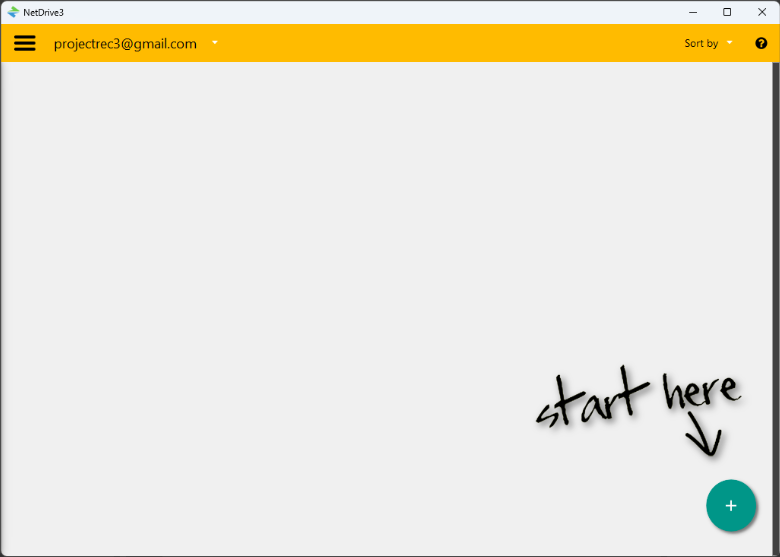
2. Click on Start here to begin configuring your drive:
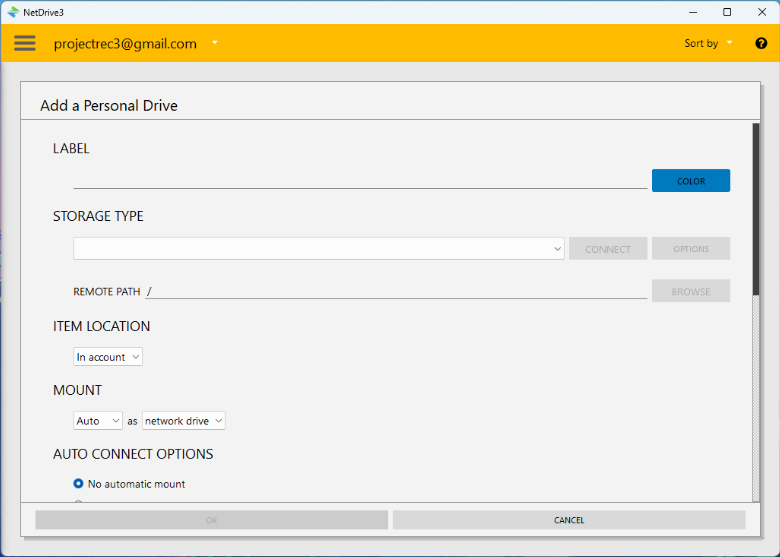
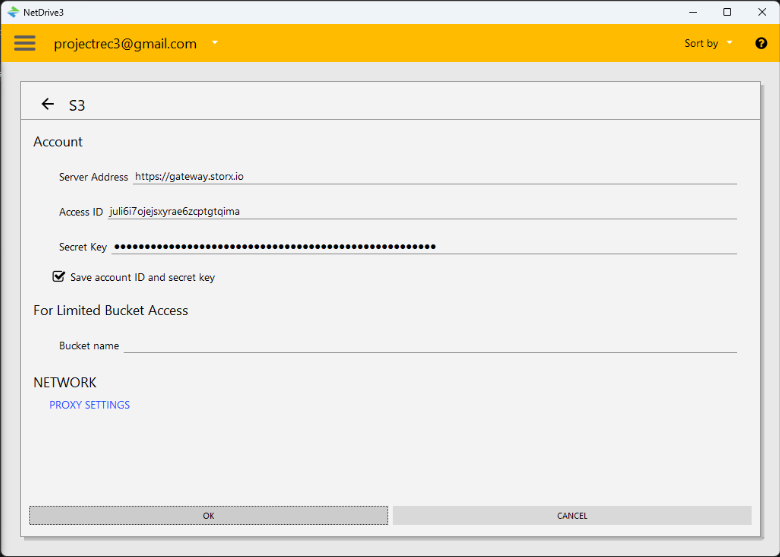
3. Select S3 as the storage type and click Connect. Enter your StorX credentials:
- Access Key: Your StorX Access Key
- Secret Key: Your StorX Secret Key
- Endpoint:
gateway.storx.io
Click OK to proceed.
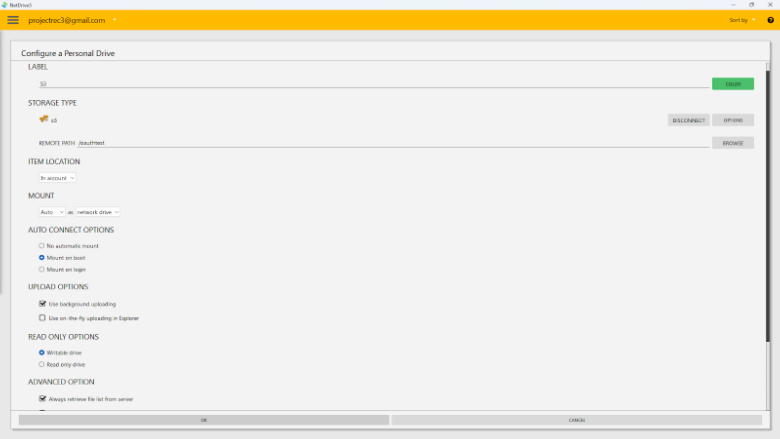
4. Configure your personal drive settings:
5. You'll see a confirmation that the connection to StorX was successful:
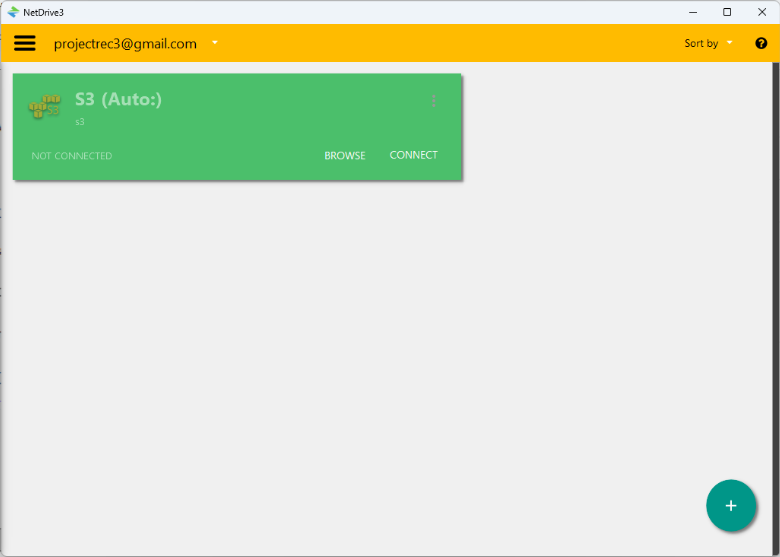
6. Click Connect to access your StorX vaults in Windows File Explorer:
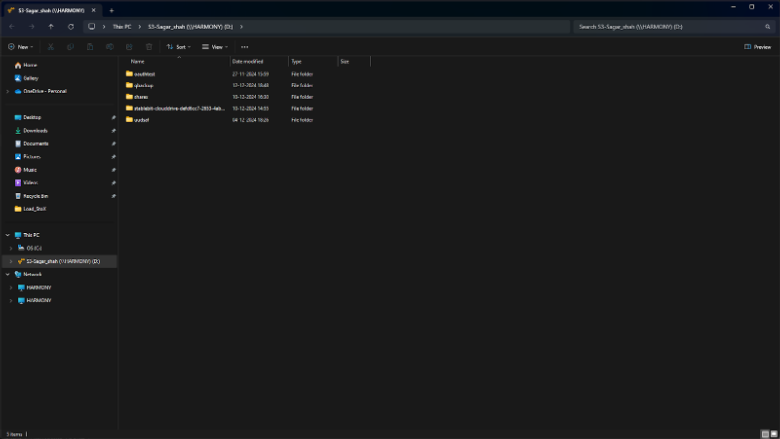
7. You can now perform file operations (upload, download, delete, rename) directly from Windows File Explorer using your StorX network drive.
✓ Integration Complete! Your StorX decentralized storage is now mounted as a network drive. You can access, manage, and transfer files just like any local drive on your computer.
What You Can Do Now
- Direct File Access: Open files directly from StorX without downloading first
- Drag and Drop: Easily move files between local folders and StorX
- Multiple Cloud Management: Access StorX alongside Google Drive, Dropbox, OneDrive from one interface
- Background Sync: NetDrive runs in the background for seamless access
- Auto-Mount: Configure NetDrive to automatically connect at startup
💡 Pro Tip: NetDrive offers caching options to improve performance. In the settings, you can configure cache size and location to optimize for your workflow. The 7-day trial is perfect for testing the integration before purchasing.