



What is NovaBACKUP?
NovaBACKUP is all-inclusive local and cloud backup software for Windows. It is the backup software for managed service providers and small businesses. It provides a range of backup and recovery options to protect important data, whether stored on physical devices like desktops and laptops or on servers. NovaBACKUP is known for its user-friendly interface and reliability.
Advantages of Integrating NovaBACKUP with StorX
- Enhanced Security: When using StorX, data is encrypted before it is uploaded to the decentralized storage network, ensuring that only the user can access their files. Integrating this with NovaBACKUP ensures that all backup data—whether it's a full system backup or incremental file backups—remains encrypted and secure, even during transit and storage.
- Cost-Effective Storage: StorX operates on a decentralized model where users can store data across a network of independent storage providers, often at lower costs compared to traditional cloud services. Integrating this with NovaBACKUP allows users to back up their data to StorX's decentralized network at potentially lower fees, compared to traditional cloud backup services like Amazon S3 or Google Cloud.
- Scalable Backup: With StorX, you can dynamically scale your backup storage up or down based on your needs. If your backup requirements grow, StorX provides a cost-effective way to expand your storage capacity without the need to purchase additional physical hardware or increase subscription fees with traditional cloud providers.
Download NovaBACKUP: https://www.novabackup.com/resources/downloads
Before you begin: You need an active StorX account. Join StorX →
Required StorX Credentials
Once your StorX account is set up, you'll need these credentials:
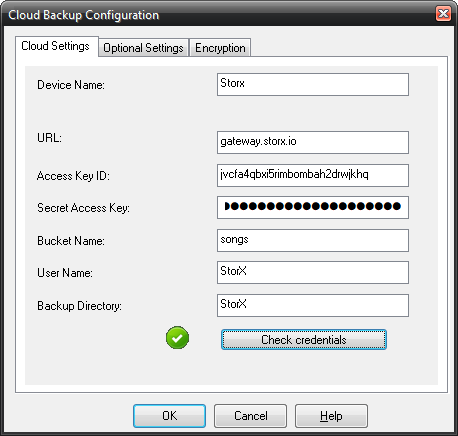
- Access Key - Your unique access identifier
- Secret Key - Your private security key
- Endpoint URL -
gateway.storx.io
Need help getting your credentials? Learn how to get Access Keys →
Step-by-Step Integration Guide
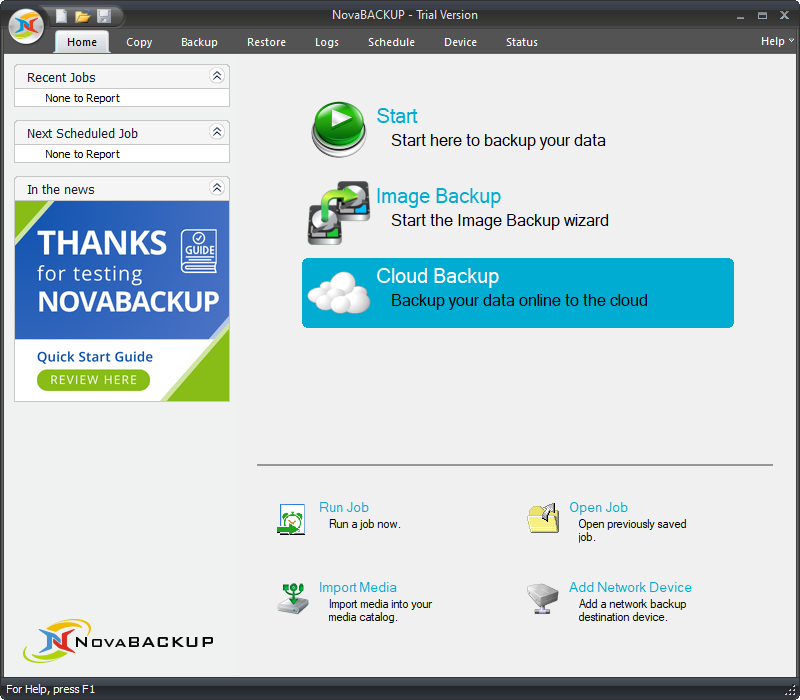
1. Download and install NovaBACKUP. Once installed, launch the application:
2. Navigate to the Device section and click on Add Cloud Backup to configure your StorX storage:
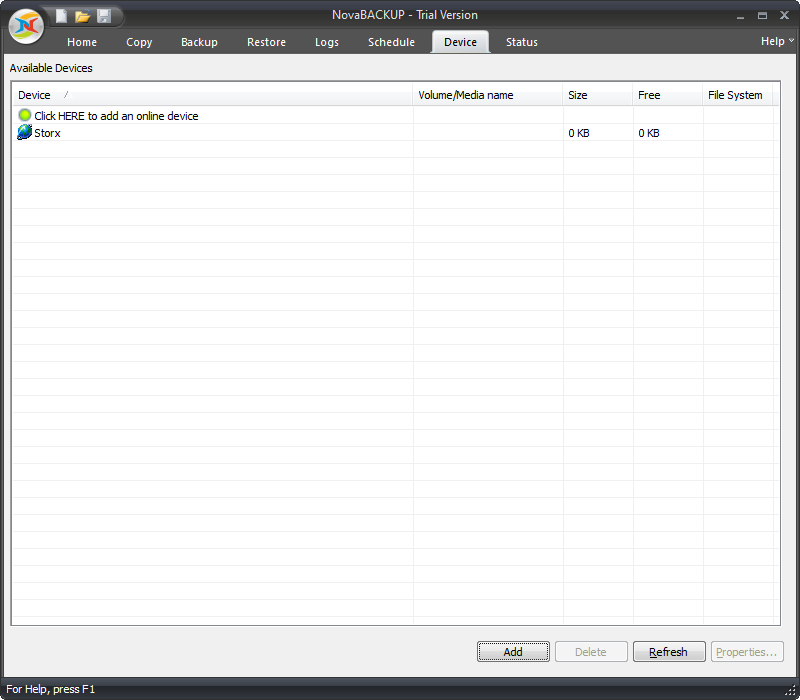
3. After successfully adding your StorX account, it will appear in the device section:
4. Navigate to the Backup tab and select the content you want to back up:
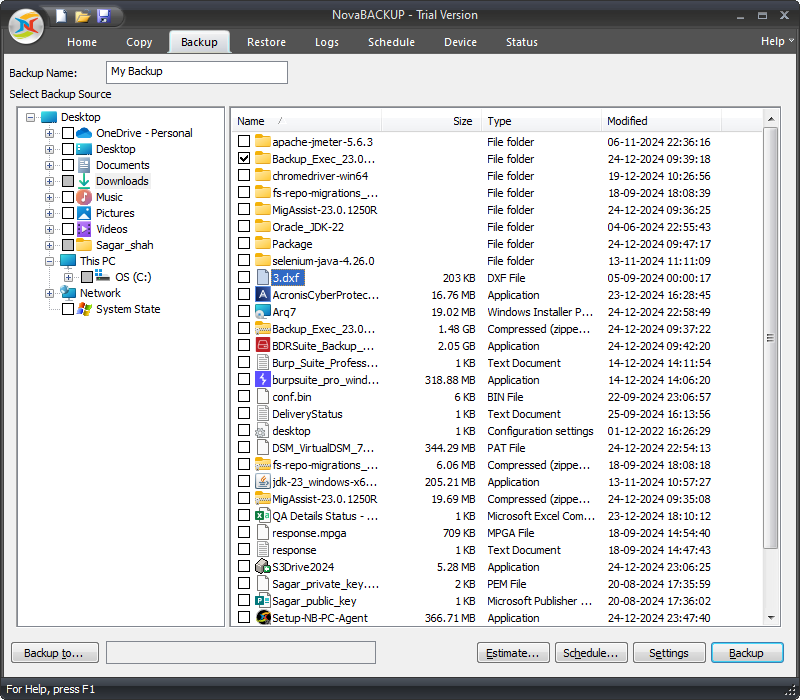
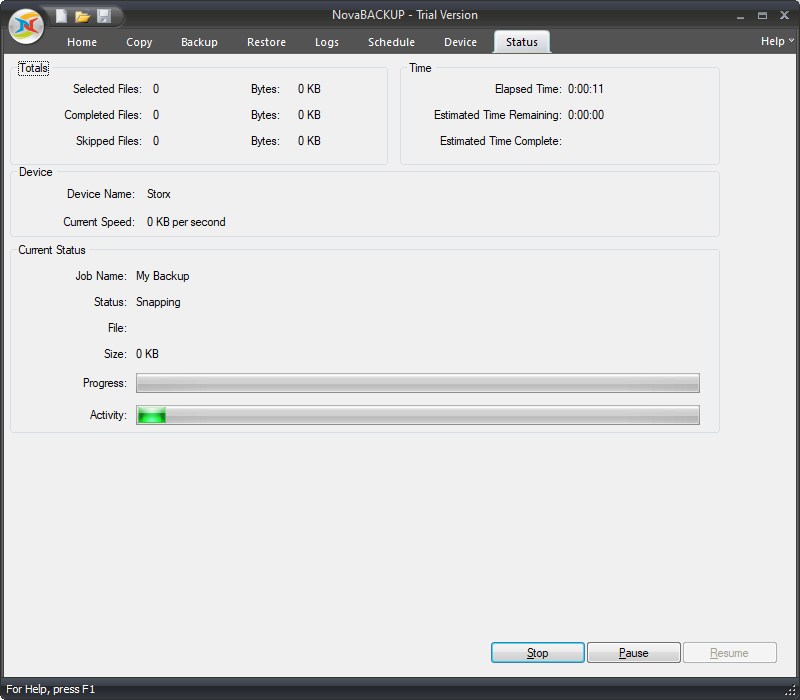
5. Select Backup to and choose your StorX storage destination. The backup will start, and you can monitor the status:
✓ Integration Complete! Your NovaBACKUP is now configured to back up your data to StorX decentralized storage. Your files are securely encrypted and stored across the distributed network.
What You Can Do Now
- Automated Backups: Schedule regular backups to run automatically
- Full System Backup: Back up entire systems including applications and settings
- Incremental Backups: Save time and space with incremental backup options
- File Recovery: Easily restore individual files or entire backups
- Disaster Recovery: Use NovaBACKUP's recovery tools with StorX as your secure offsite storage
💡 Pro Tip: NovaBACKUP supports advanced features like email notifications, compression, and encryption. Configure these in the settings to optimize your backup strategy with StorX decentralized storage.