



What is Veeam?
Veeam Backup & Replication is a software product developed by Veeam Software to back up, restore and replicate data on virtual machines. It provides data availability, fast and reliable backups, flexibility and scalability, and a user-friendly interface.
Advantages of Veeam Integration with StorX
- VM Snapshot Backup: Veeam creates backups by instructing the virtualization software to take snapshots of VMs. These snapshots capture the whole VM state, including configuration, memory, and virtual disks. The snapshot can be stored in StorX to keep it safe and protected from cyber threats.
- Cloud-Native Backup: Integration with major public clouds, including AWS, Microsoft Azure, Google Cloud Platform, and now StorX decentralized cloud storage.
- Predictive Analytics: Detect potential issues and provide recommendations for proactive problem resolution while using StorX as a backup target.
- Disaster Recovery: Leverage existing Veeam backups and replicas stored in StorX for efficient disaster recovery.
- Data Archiving: Veeam's solutions support various storage options, including on-premises, cloud-based, and hybrid storage. StorX provides an ideal decentralized solution for long-term data archiving and compliance purposes.
Download Veeam: veeam.com 30-day trial
Before you begin: You need an active StorX account. Join StorX →
Required StorX Credentials
- Access Key - Your unique access identifier
- Secret Key - Your private security key
- Endpoint URL -
gateway.storx.io
Need help getting your credentials? Learn how to get Access Keys →
Step-by-Step Integration Guide
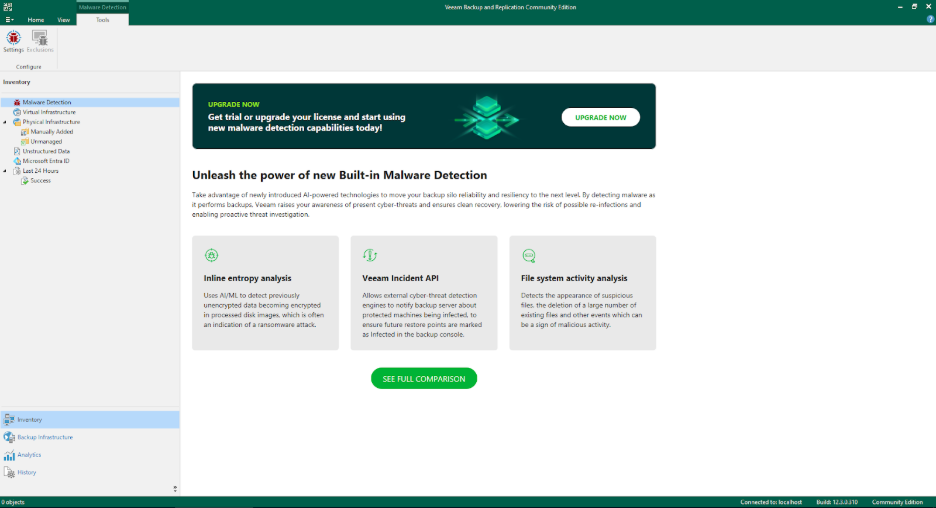
1. Install Veeam Backup & Replication and open the application:
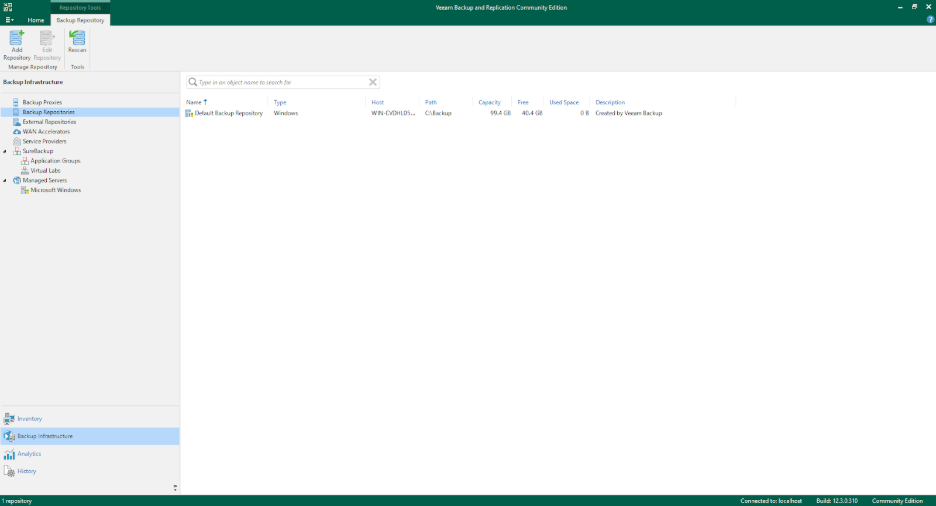
2. Select Backup Infrastructure from the side menu and choose Backup Repositories:
3. Click Add Repository from the top header:
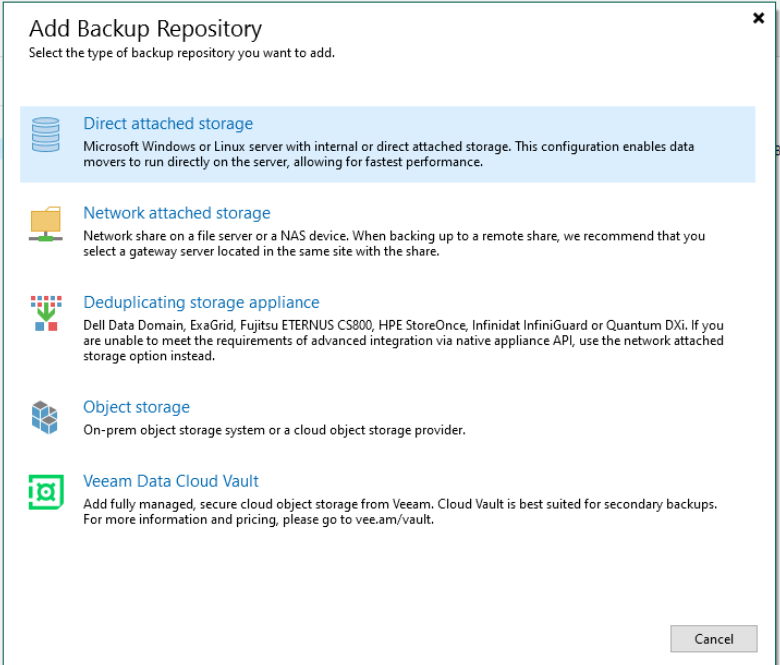
4. Select Object Storage as the repository type:
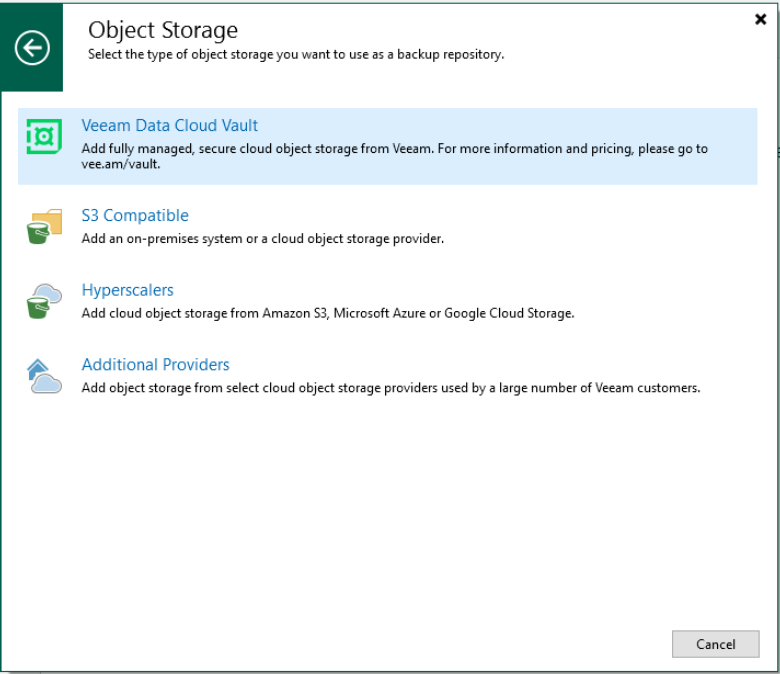
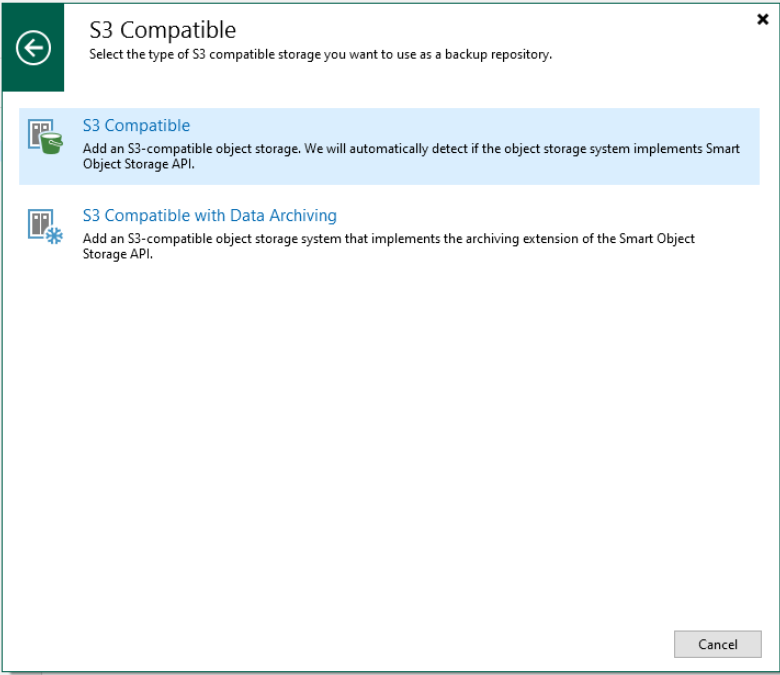
5. Choose S3 Compatible as the storage type:
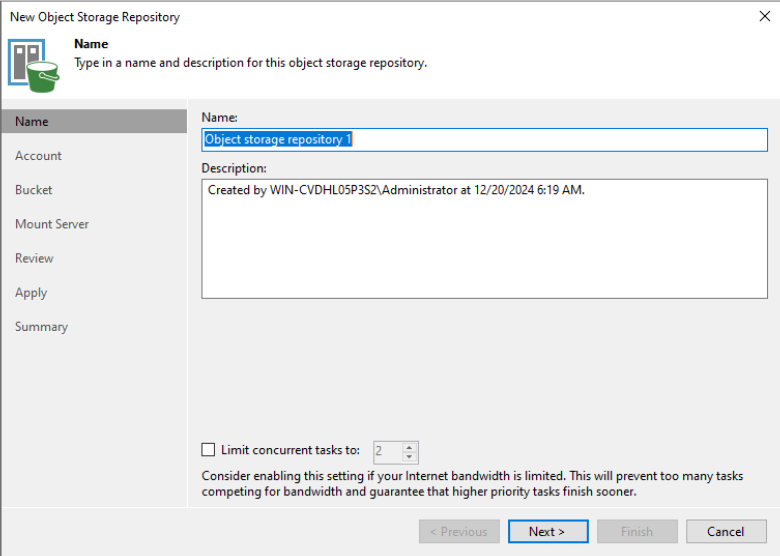
6. Enter a name and description for the repository:
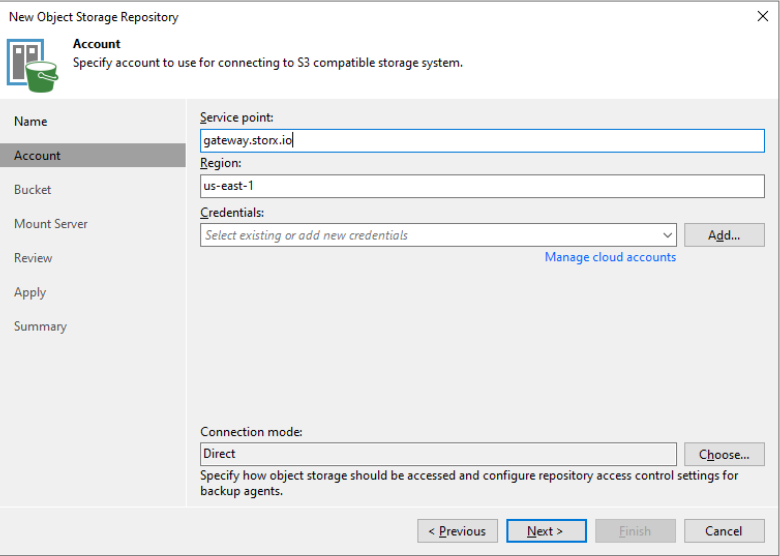
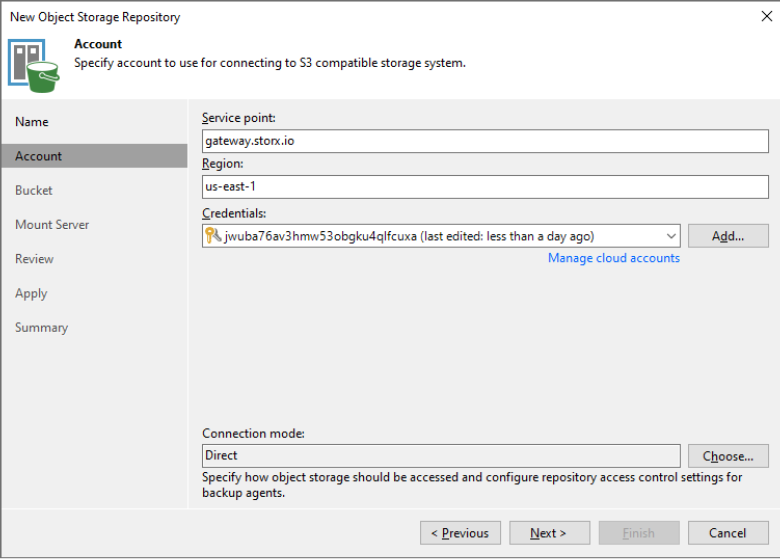
7. Enter the StorX endpoint:
gateway.storx.io
8. Enter your StorX access credentials:
- Access Key: Your StorX Access Key
- Secret Key: Your StorX Secret Key
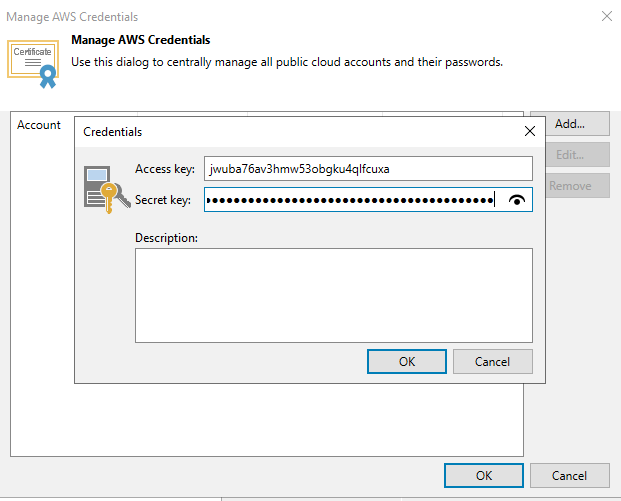
9. Confirm the AWS credentials are validated:
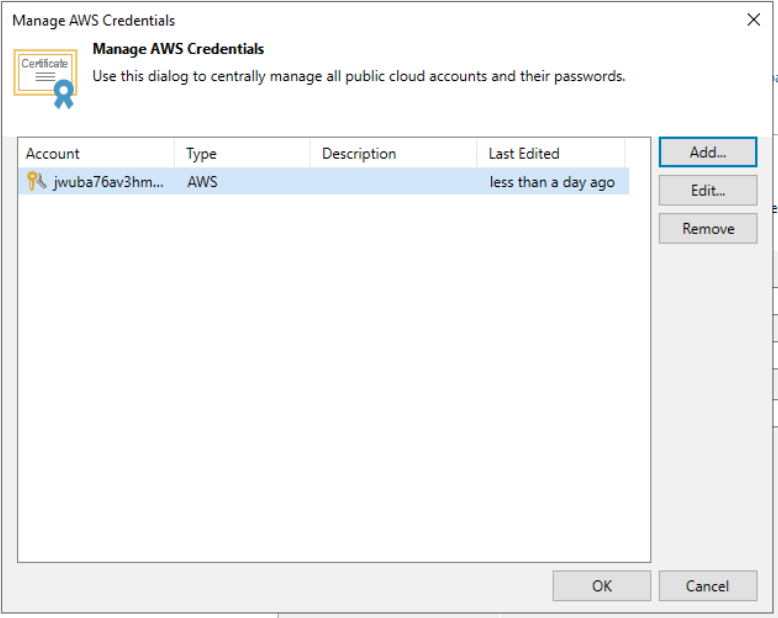
10. Click OK and confirm the connection. Then click Continue:
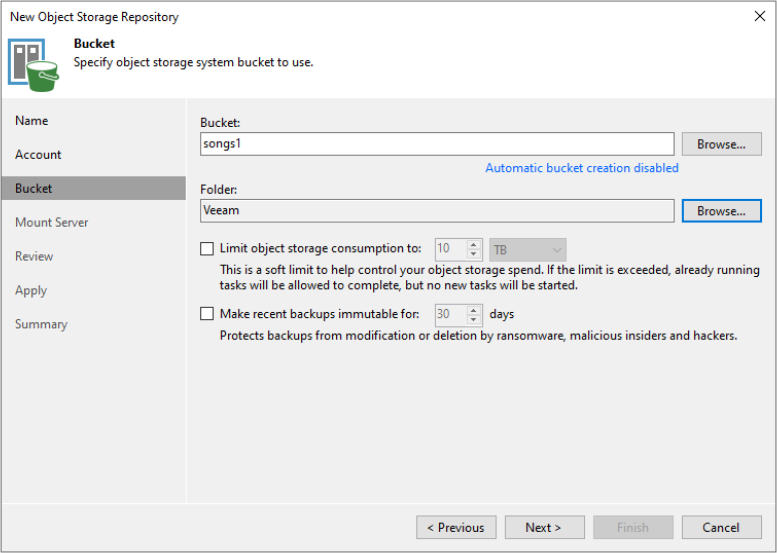
11. Enter the bucket details and folder path for backups:
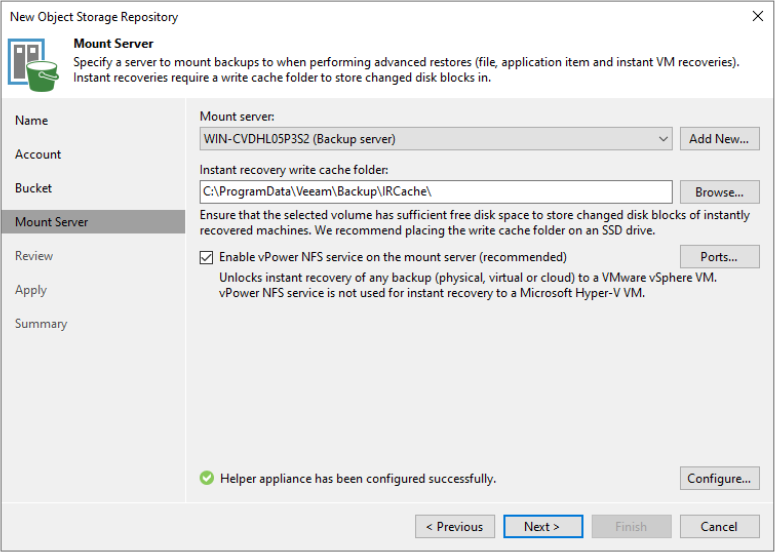
12. Configure the mount server settings:
13. Review the configuration:
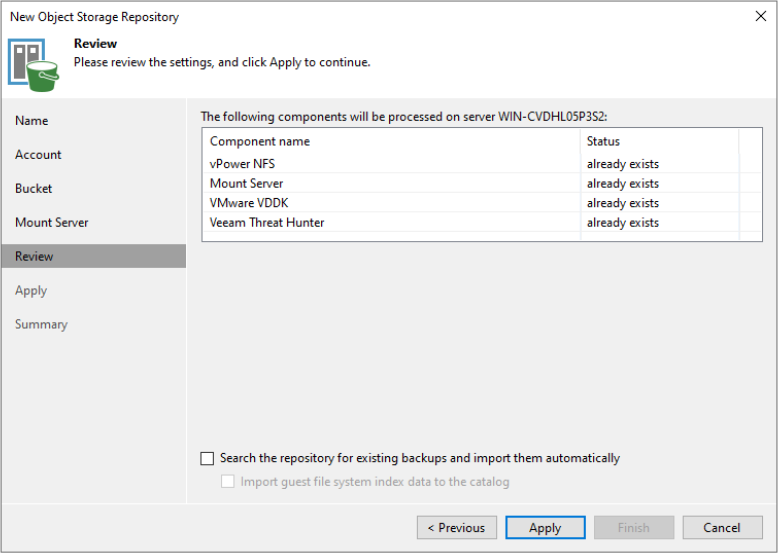
14. Click Continue to proceed:
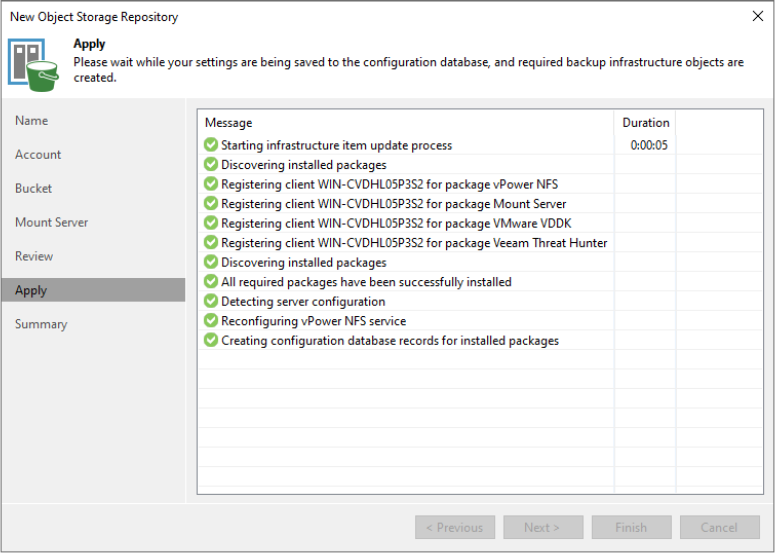
15. Review the summary and click Next:
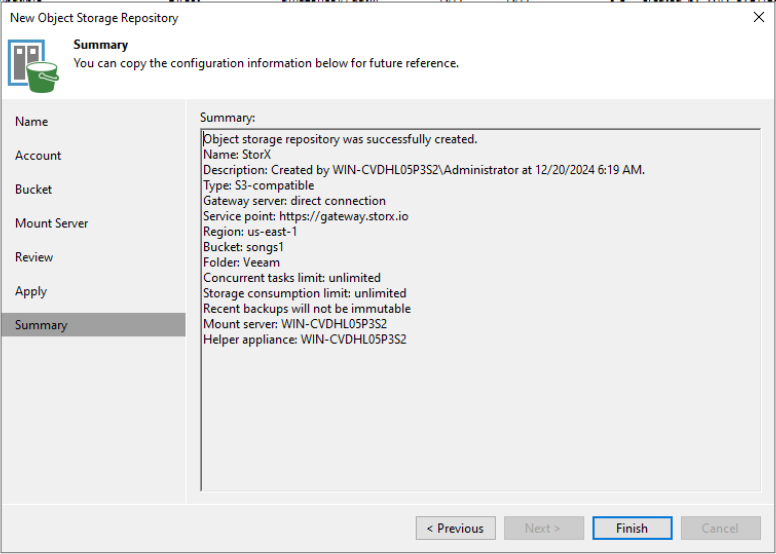
16. Click Finish to complete the setup:
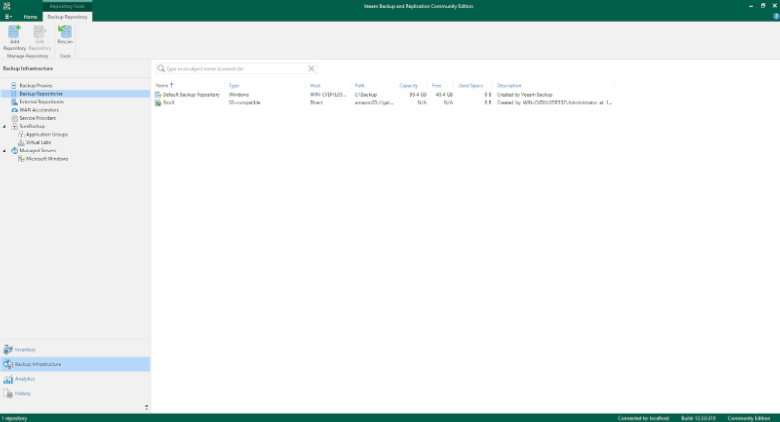
✓ Integration Complete! Your StorX decentralized storage is now configured as a backup repository in Veeam. You can now use StorX as a target for VM backups, replicas, and archives.
What You Can Do Now
- VM Backups: Back up virtual machines directly to StorX decentralized storage
- Long-Term Retention: Use StorX for archival backups with Veeam's retention policies
- Disaster Recovery: Store disaster recovery copies in secure decentralized storage
- Replication: Replicate critical VMs to StorX for additional protection
- Compliance: Meet compliance requirements with encrypted, distributed storage
💡 Pro Tip: Veeam's 30-day trial is perfect for testing the StorX integration. After setup, create a backup job targeting your new StorX repository and run a test backup to verify everything works correctly.